
In the previous post, we introduced the Linux command console and, more specifically, the Bash CLI as a powerful tool we need to stop being afraid of when using a Linux-based system like Raspberry Pi.
We left some more advanced aspects of the command console untouched. In this post, we will delve into some of these advanced Bash and terminal concepts that will allow us to be more efficient when executing commands in Linux on our Raspberry Pis.
Sequential Command Execution
In Bash, it is possible to execute multiple commands in a single line. So, if we want to execute command1 and then command2, regardless of the result of command1, we can use the separator ’;’
command1 ; command2
Conditional execution of command sequences is also possible, where execution depends on the result of the previous command.
Thus, to execute a command only if the previous command was successful, we use the separator ’&&’
command1 && command2
If, on the other hand, we want to execute a command only if the previous command failed, we use the separator ’||’
command1 || command2
As an example, to launch a 5-second wait and then launch the ‘nano’ text editor opening the file ‘hola.txt’, we execute the following instruction:
sleep 5 && nano hola.txt
Using Bash History
We already saw in the previous post that we can navigate through previously entered commands using the “up” and “down” arrow keys.
We can also use reverse search by pressing the ‘Control + R’ keys. By typing the first letters of a command we have previously written, Bash searches through the commands and finds the command that starts with the letters we have typed.
Once located, we can press enter to execute the command, or tab to leave it as the current command.
On the other hand, if we want to repeat the last command used, we can write
!!
For example, it is very useful if we have written a command and forgot to use sudo. We can repeat the command by writing:
sudo !!
Finally, it is also possible to refer to one or more arguments written in the last command.
!* #The previous command without the last word !
For example, we can create a directory and then access it by writing:
mkdir nombreDeDirectorioMuyLargo cd $*
Similar behavior can be obtained with the key combination ‘Alt + .’, which shows us the last arguments entered in a cyclic manner.
Using Wildcards
It is possible to use the ’*’ symbol as a wildcard, that is, an alias that means “anything”.
For example, if we have a file called ‘nombreDeFicheroRealmenteLargo’ and we want to apply a command, we can use
comando nombre*Largo
We will execute the command on all files that start with ‘nombre’ and end with ‘largo’, within the current directory.
A very common use is to delete (or copy, or any other command) all files with a certain extension. For example, to delete all files with the ‘txt’ extension, we would execute:
rm *.txt
Redirections in Bash
Another interesting aspect is the possibility of performing redirections, that is, making the output or input of a command come from a different source than the command console. The most common destinations/sources are text files (although others exist).
Thus, an output redirection, where the result of a command is sent to a “destination” instead of being displayed on the screen, would look like this:
comando > destino
And an input redirection, where the command uses “source” as input instead of the keyboard
comando2 < origen
For example, if we want to save the result of a command to a text file, we use an output redirection. For this, we use the character ’>’ if we want to replace the file’s content, or ’>>’ if we want to append the content while keeping the original.
Thus, if we want to save the listing of files and folders of a directory in a file “output.txt”, we could execute the following instruction:
ls > output.txt
If, continuing with the example, we want to count the number of lines in the file “output.txt”, we can use an input redirection with the following instruction:
wc < output.txt
Pipes
Pipes allow sending the result of one command as input to another command. It is similar to combining an output redirection and an input redirection. The character ’|’ is used for this.
For example, the following example lists all files in a folder with the ‘ls’ command and then searches the result for lines containing the word ‘word’ with the ‘grep’ command.
ls | grep Word
Multiple Command Interpreters
In most distributions, it is possible to run several independent and simultaneous command interpreters, in addition to those we can launch as windows within the graphical environment.
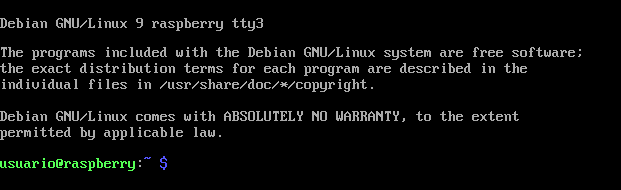
Thus, we can press the keyboard combination Control ‘Ctrl + Alt + F1’ … F6, to launch up to 6 terminals independent of the graphical environment.
If we have several terminals open, we can execute the following command to find out which terminal we are in.
Tty
On the other hand, the keyboard shortcut ‘Ctrl + d’ closes the current terminal session. Finally, the combination ‘Ctrl + Alt + F7’ will return us to the graphical environment, if we were using one.
Running Processes in Parallel
It is also possible to run multiple processes in parallel from a single command console. To execute a command and send it to the background, we use the character ’&’
For example, if we want to launch chromium but not wait for it to close to continue executing commands, we can launch it in the background with:
chromium &

On the other hand, the keyboard shortcut ‘Ctrl + z’ sends the current process to the background.
To see the processes we have running in the background, we execute the command
bg
And to recover the last process we put in the background, we use the command
fg
That’s it for this post to turn you into expert Bash users and finish losing your fear of it completely. There are still many more things to explain, but we will discover them little by little. We will use the command console frequently in the Raspberry Pi and Linux tutorials. So now you know. Time to delve deeper into Bash!
