
BurntToast is a PowerShell module that allows you to create modern-style pop-up notifications in Windows 10. With BurntToast we can generate a notification and easily customize it with text, images, sounds, and interactive links.
This module is especially useful, for example, for creating scripts and automating tasks in PowerShell, notifying the user when a process has been completed… things like that.
It can also be used by developers to add notifications to their applications. We only need to run a terminal command, so we can integrate it with a large number of technologies easily.
How to install BurntToast
Before starting to use BurntToast, you must install the module on your computer. To do this, we open PowerShell and run the following command:
Install-Module -Name BurntToast
If at any point you want to uninstall it, you simply need to run this command.
UnInstall-Module -Name BurntToast
How to use BurntToast
Once the module is installed, you can start using it in PowerShell with the command.
New-BurntToastNotification
Or more simply using the alias
Toast
This will show us the default Toast, which isn’t very useful by itself, but it will serve to check that it works correctly.
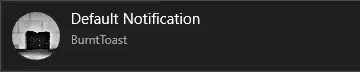
Now we can customize the Toast with different optional parameters. If you want a list of options and examples you can use
Toast -?
Creating a basic notification
To create a basic notification with BurntToast, add the -Text parameter. The following example shows how to create a pop-up notification with a simple text message:
Toast -Text “Hello, this is an example message.”
When you run this command, a pop-up notification will appear in the lower right corner of the screen with the provided message.
Image in the notification
You can add an icon image to the notification using the -AppLogo parameter.
For example, if you have an image file named icon.png on a path on your hard drive, we can add it to the notification as follows:
Toast -Text “Message with icon” -AppLogo “C:\image_path\icon.png”
Adding a sound
BurntToast also allows you to add a sound to the notification, as an alarm. You can use one of the default system sounds or provide your own sound file.
To add a default sound, use the -Sound parameter. For example, to use Windows’ default notification:
Toast -Text “Message with sound” -Sound ‘Notification.Default’
If you want to provide your own sound file, use the -SoundPath parameter. For example:
Toast -Text “Message with custom sound” -Sound “Alarm2”
These are the simplest examples. You have more on the project’s website, which include how to add a button with a link, a “hero” image, or a progress bar, among others.
BurntToast is Open Source, and all the code is available on GitHub - Windows/BurntToast
