
.NET technology is one of the best advances in task automation made available to programmers. Imagine a small program that retrieves data from a drawing made with a design program, performs a series of calculations, opens an Excel sheet to create some charts, generates a report in a Word file, prints it to PDF and saves it in its folder, and finally makes an entry in a database. Well, all of this is possible, thanks to the .NET model and technology.
Despite its great features, it’s other languages like Bash, Python, or Java that have the reputation of being suitable for creating small scripts for task automation. In comparison, the general opinion about .NET is that it requires a sophisticated and heavy IDE like Visual Studio for programming. Nothing could be further from the truth. While having an IDE simplifies the work, the truth is that any Windows system capable of running .NET natively has the necessary tools to compile programs.
In this post, we are going to see how to create a small .NET application using a simple text editor and compile C# from the console without needing any additional program.
Our Hello World in C#
First, we open an empty file with any text editor and copy the following code:
{
  public static void Main()
  {
    System.Console.WriteLine("Hello World");
  }
}
Save the file as helloWorld.cs in any location, for example, on the desktop.
Compile and Run the Application
It is necessary to find out which is the latest version of the compiler installed on our computer. To do this, we look in C:\Windows\Microsoft.NET and find the most recent version available. In our case, it is C:\Windows\Microsoft.NET\Framework64\v4.0.30319\.
Now we open a command console by using Run (Windows key + R), typing CMD, and then pressing Enter. We navigate to the folder where we saved helloWorld.cs and compile using the following command:
C:\Windows\Microsoft.NET\Framework64\v4.0.30319\csc.exe helloWorld.cs
This creates an executable with the same name as the class and a .exe extension. To run it, we simply type:
helloWorld.exe
We will see that our program obediently displays “Hello World”, just as we expected.
Add Compiler to PATH
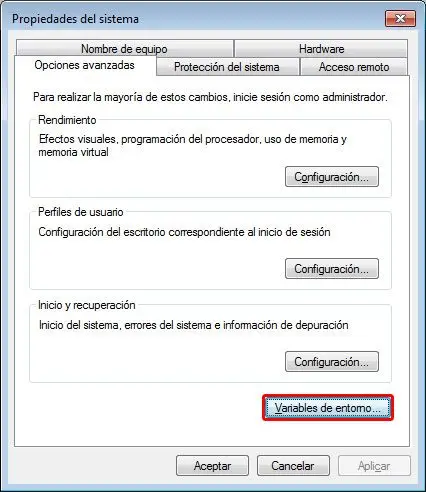
Finally, if we want to avoid typing the full path to the compiler, we can add the path to the system PATH variable. To do this, open System Properties from the Control Panel. Select Environment Variables.
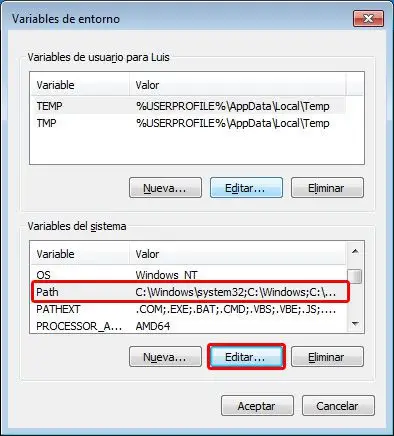
Find the system PATH variable and click Edit.
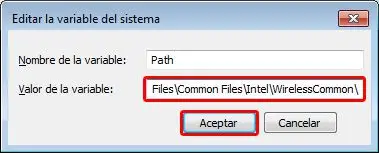
Finally, add the address to the end of the variable’s value, separated by a semicolon.
Done! Now we can compile our class (or any other C# class) by simply typing:
csc helloWorld.cs
Did you find this information useful? Do you prefer another language over C# and .NET? Do you have any questions? If you want to give your opinion or suggestions, you are invited to leave a comment.