
Continuing with the Raspberry Pi tutorials. We have already seen how to install Raspbian (or another OS) using Etcher or with Noobs. Now it’s time to configure our Raspberry Pi.
Configuration includes options like changing the language, localization, enabling or disabling interfaces, changing the resolution, or boot options.
In the next post, we will see how to manage users and change passwords, so we exclude that from the Raspberry configuration as it deserves its own entry.
Fortunately, in current versions of Raspbian, the process of configuring a Raspberry Pi has been greatly simplified, as a graphical configuration window has been added to the GUI.
Nevertheless, the previous configuration method from the command line is still available, through a window with options similar to the GUI one. We will see both methods in this post.
We will assume we have a freshly installed Raspberry Pi, so it’s still in English. Therefore, the instructions and windows we see will be in English, to make it easier to follow. By the end of the post, you will have your Raspberry Pi configured and in the language you want.
Configure Raspberry Pi from GUI
As mentioned, in current versions of Raspbian, the Raspberry Pi configuration process has been greatly simplified as we have a configuration window with all available options.
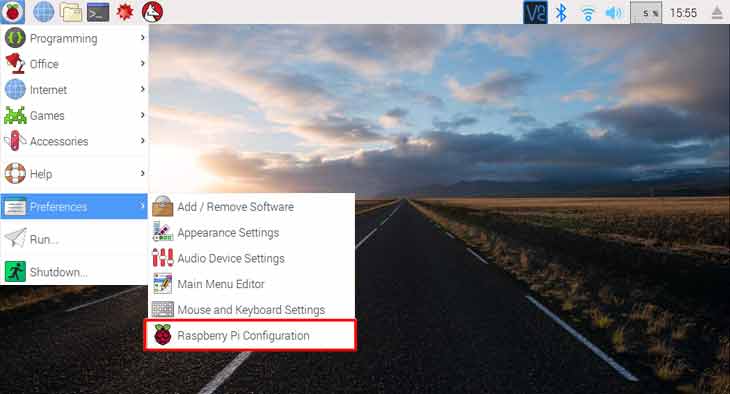
This window is available from the start menu, under Preferences/Raspberry Pi Configuration.
We access a window that has four different tabs.
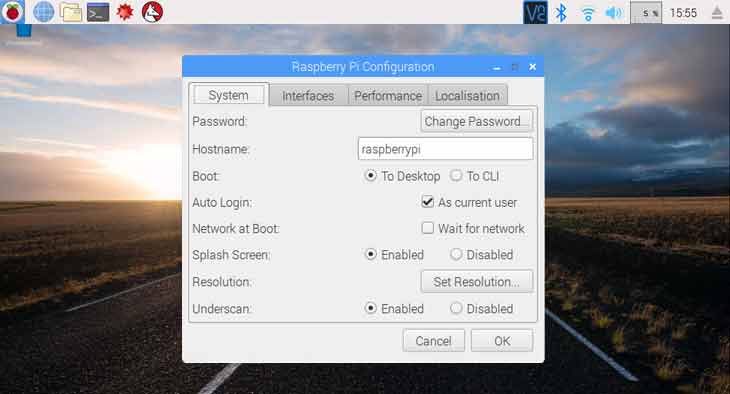
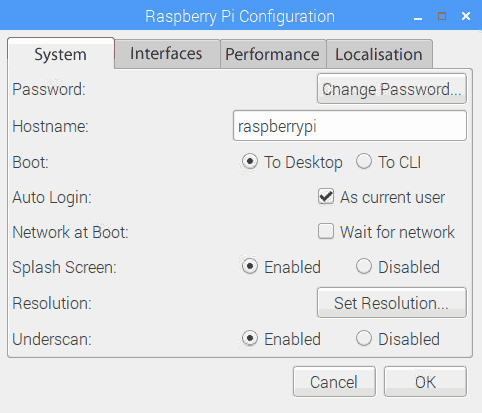
In the first one, we can change the password, the device name, adjust boot options, and change the resolution.
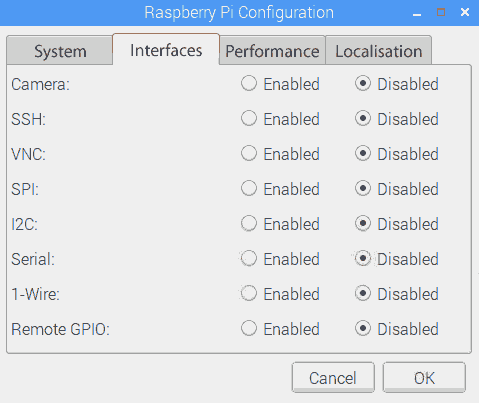
In the second tab, we have the interface options. From here we can enable various very important Raspberry Pi functions like remote access via SSH or VPN, the camera interface, communication buses (SPI, I2C, Serial and 1-Wire), or remote GPIO control.
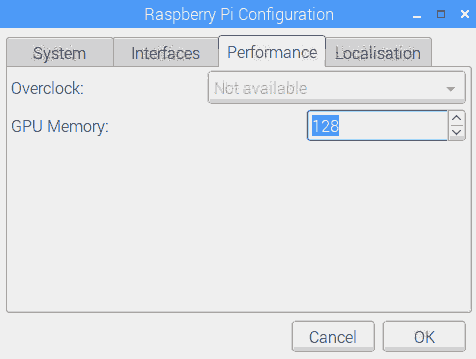
In the third tab, we have the performance options. Basically the option to overclock our Raspberry and change the memory dedicated to the GPU (graphics card).
The fourth and final tab has the localization options and has four buttons. It’s a good idea to go through all four to configure the regional settings of the Raspberry Pi.
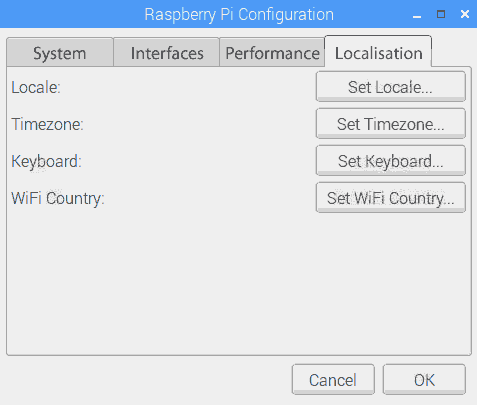
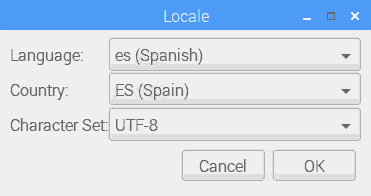
With the first button, Set Locale, we change the language and region of the Raspberry Pi. In the second button, Set TimeZone, we change the time zone.
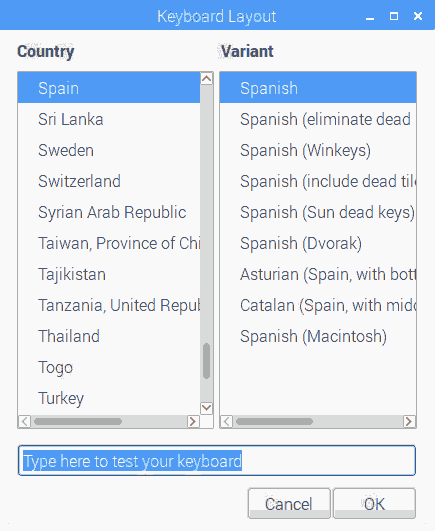
The third button, Set Keyboard, allows changing the keyboard layout (good news for Spanish speakers, we get the letter ‘Ñ’ back)
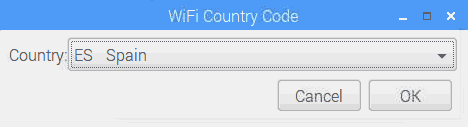
Finally, with the fourth button, Set Wifi Country, we choose our region again. This simply adjusts certain Wifi parameters as some countries have different regulations regarding electromagnetic emission and Wifi channel usage.
Configure Raspberry Pi from Command Line
It is also possible that we want to configure Raspberry Pi from the command line. This could be because we have chosen an OS without a GUI, because we are accessing via SSH, or simply because we like using the command line.
Since the first version of Raspberry Pi, before having a graphical window for configuration, Raspbian has always had a console utility to perform Raspberry Pi configuration.
To access it, from a command line, we run the command
sudo raspi-config
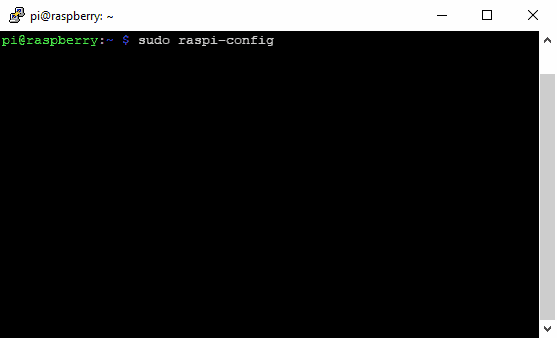
A window appears that, basically, has the same options we saw in the previous section for the graphical window.
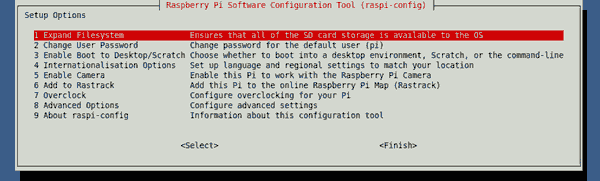
We simply navigate through the different menus and submenus with the cursor keys, and modify the options we want.
Now we have our Raspberry Pi configured. In the next post, we will spend some time on user and password management, a basic and necessary security measure in any installation.
