NuGet is the package manager created by Microsoft for managing libraries in .NET projects. Through NuGet, we can download libraries easily and quickly.
Packages: A NuGet package is a distribution unit that contains code, resources, and metadata describing how to use it. Packages are usually in
.nupkgformat.Repositories: NuGet uses repositories to store and distribute packages. The most common repository is nuget.org, but local and private repositories can be used.
NuGet manages dependencies between different libraries, ensuring all versions are compatible and avoiding conflicts between them.
In addition to third-party libraries, NuGet also allows the distribution of your own packages, which facilitates code reuse (for example, within an organization or development team).
If you want to learn more, check out the Introduction to Programming Course
How to Search and Install NuGet Packages
NuGet packages can be installed in your project in several ways, including using the command line, the Package Explorer in Visual Studio, via command console, or by directly editing the .csproj project file.
Using the Visual Studio Interface
The most common way to install NuGet packages is through Visual Studio, where you can search and download packages from the NuGet gallery.
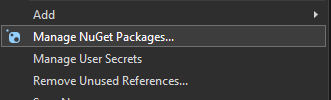
To do this, simply right-click on the project in the Solution Explorer and choose Manage NuGet Packages.
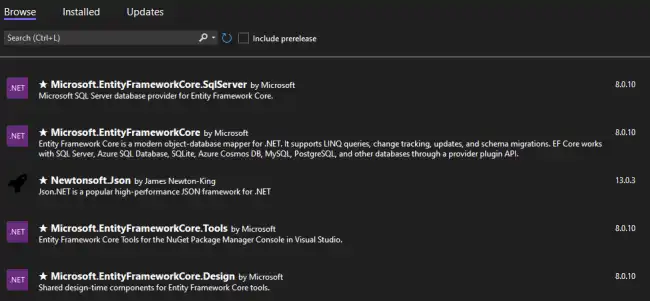
The package manager will appear, where you can view the packages installed in the solution. You can also update packages from here.
You can also search for packages to install by typing the name of the package you need or related keywords.
To install a package, simply click Install. Visual Studio will automatically add the package to your project and configure the dependencies in the .csproj file.
Configuration and Use of NuGet Packages in a Project
Once a package is installed, its functions are ready to be used in your code. There’s nothing else to do.
However, in general, external packages will have their functions in a Namespace, which we will need to reference in our code.
For example, let’s take the popular Newtonsoft.Json library,
// importing the namespace
using Newtonsoft.Json;

Persona persona = new Persona { Nombre = "Carlos", Edad = 25 };
string json = JsonConvert.SerializeObject(persona);
Console.WriteLine(json);
In this example, JsonConvert is a class that is part of Newtonsoft.Json and allows converting an object into a JSON string.
Create a Custom NuGet Package
If you develop a library, you can also package it as a NuGet package. This is particularly useful in collaborative environments.
To do this, first make sure everything compiles correctly (otherwise it won’t let you create it) and that all functionality is well documented.
Now, in the terminal, navigate to the project directory and run:
dotnet pack
This command will create a .nupkg file, which contains everything needed to distribute your library.
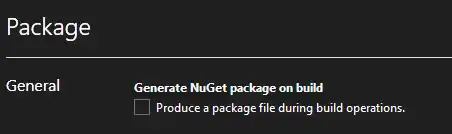
Alternatively, in Visual Studio there is a “tick” in Project Settings / Package that allows generating the NuGet automatically on each build.