
One of the most frequent questions that arise when starting with a Linux system is how to set up a Dual Boot configuration alongside Windows, that is, an installation with both systems on the same computer, allowing us to choose which system to boot when starting the computer.
On the other hand, the Linux partition system is more complicated than in Windows, as it allows installation on a system with multiple partitions. This improves system performance and maintenance, but can be somewhat confusing for those new to the Linux world.
In this post, we are going to see how to install a Linux system (specifically Ubuntu or Linux Mint) in a Dual Boot configuration alongside Windows 7 or 8.
How much space do we need?
Logically, this is the first thing we should ask ourselves before installing our system. Unfortunately, this question does not have a single answer as it totally depends on the distribution you are going to install and the use you plan to give it. For the lighter distributions, 2 or 4 gigabytes may be more than enough for certain uses.
In this tutorial, we are going to install Ubuntu or Linux Mint, which are fairly heavy Linux systems. In this case, 6 GB is the minimum, with at least 10 GB being highly recommended. From there, it’s up to you. 50, 100 GB… it depends on the use you plan to give it. Keep in mind that certain files (movies, torrent downloads, or virtual machines…) take up a considerable amount of space.
How to get the necessary space?
Here we must differentiate between two scenarios. One possible case is that we are going to install both Windows and Linux on an empty system, i.e., a clean installation. The other, more complicated case, is installing Linux on a hard drive where a Windows partition already exists that we want to keep.
Clean installation of Windows and Linux
This is the ideal case, faster and safer. If we are lucky enough to be installing both systems on an empty hard drive, we can simply define the size of the Windows installation during the installation process, leaving space for the subsequent Linux installation. 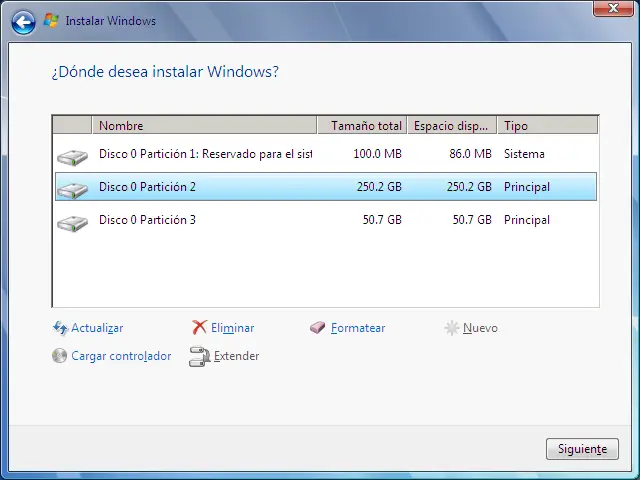 If this is your case, congratulations. Simply perform the Windows installation, and once finished, you can proceed to the Windows installation without needing additional steps.
Resize the Windows partition
If, on the contrary, the Windows installation is existing and we want to keep its data, we must resize the existing partition to accommodate the new Linux system to be installed. During the process, the system relocates and reorganizes the data within the hard drive to obtain a contiguous space where the new partition can be placed.
This process can be really slow, depending on usage, free space, and data fragmentation. Furthermore, there is always a certain risk of data loss. You should keep this very much in mind and make a backup of your data beforehand.
There are many ways to resize a partition, and software dedicated to handling partitions (such as Gparted or Partition magic). However, to resize a Windows partition, the safest and most convenient way is to let Windows itself perform the process, through the built-in disk manager.
To do this, open File Explorer, right-click on “My Computer”, and select “Manage”. 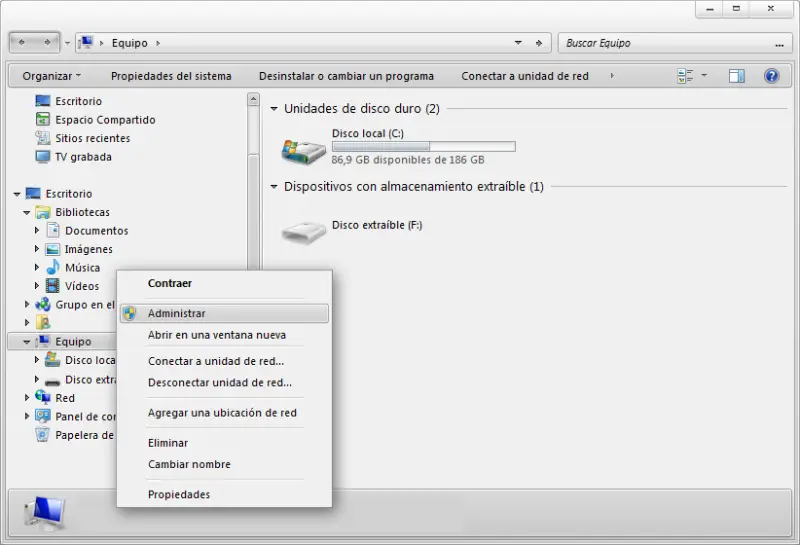 This will open the Computer Management panel, where we will select “Disk Management”. A list of all our hard drives and partitions will appear. Right-click on the partition we want to shrink and select “Shrink Volume”.
 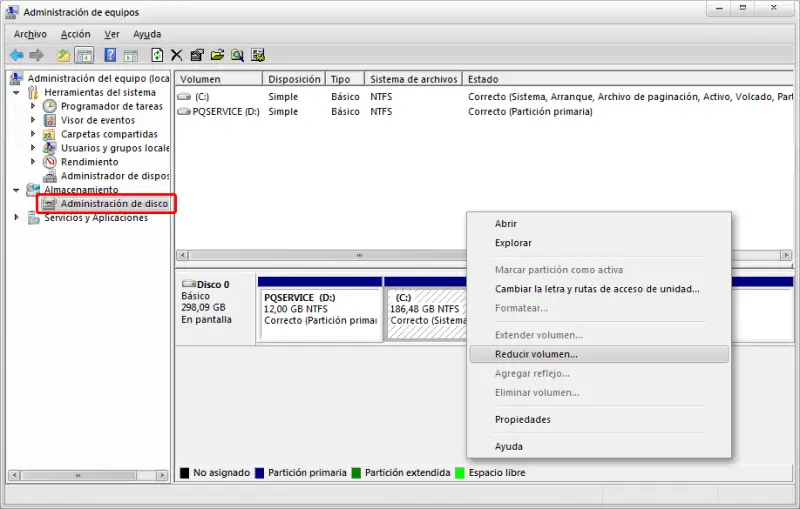 In the next window, the data of the partition we want to resize appears, including the space available for shrinking. We select the amount of space we want to shrink to allocate to the Linux system. Of course, we must not shrink all the available space, because we would leave our Windows installation without free space, which would cause it to stop working.
 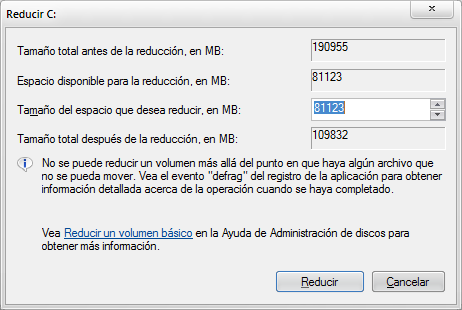 Finally, click “Shrink” and the process will begin. As we said, it is usually a fairly slow process, even taking several hours. Be patient, and when finished, we will have free space to accommodate our Linux partition.
In the next post we will install our Ubuntu / Linux Mint distribution and configure the necessary partitions.
