

Today we are going to see how to solve the problem of missing fonts in Windows Terminal on Windows 11.
The latest version of Microsoft’s operating system has brought numerous improvements and changes to the user interface.
However, as often happens with software updates, it has also generated some problems, one of which affects font display in Windows Terminal.
Specifically, we will see how to solve a problem I encountered while working with fonts in Windows Terminal. After configuring it correctly, we close the terminal, reopen it and… BAM! 💥
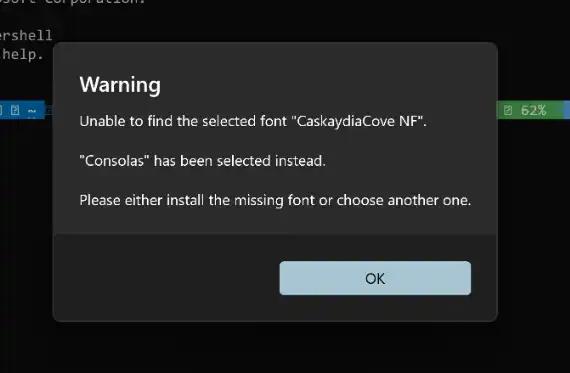
A message saying it cannot find the font. You can configure it as many times as you want, but when you reopen Windows Terminal, it will have lost the font.
What’s happening?
It seems the main problem lies in the location of fonts in Windows 11. In previous versions of Windows, fonts were saved at the system level in the C:\Windows\Fonts folder.
However, in Windows 11, Microsoft has moved fonts to a different location, specifically to the user’s folder %LOCALAPPDATA%\Microsoft\Windows\Fonts.
In theory, this change is an improvement because now each user can have their own fonts. But it has also brought several problems and incompatibilities. For example, Windows Terminal itself seems unable to access them properly (pause for facepalm 🤦♀️).
Temporary Solution
This problem manifests when users try to install new fonts in Windows 11. If we install them by double-clicking a font file or by dragging it to the fonts window, it installs them at the user level.
Then Windows Terminal does not recognize them, which translates to… that, to BAM! 💥
While we wait for Microsoft to provide an official update to fix this problem, there is a temporary solution so we can recover our fonts in Windows Terminal.
1: Do Not Install Fonts by Double-Clicking or Dragging ❌
The first part of the solution is to avoid installing fonts by double-clicking the font file or dragging it to the fonts window in Windows 11.
These methods, which used to work in previous versions of Windows, are no longer effective due to the change in font location.
2: Install Fonts as Administrator ✔️
Instead, to install fonts in Windows 11 effectively, we do the following:
- Right-click on the font file you want to install.
- In the context menu that appears, select “Install for all users.”
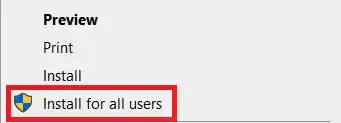
This action will ensure that fonts are installed correctly and are available for use in Windows Terminal and other applications.
Although we hope Microsoft will resolve this issue in future operating system updates, users can use the temporary solution mentioned above to install fonts effectively.
References:
