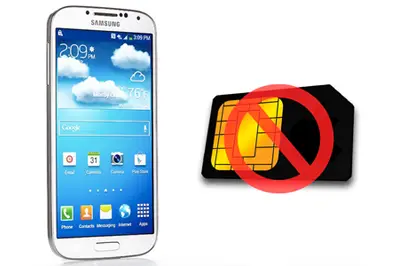
If you own a Samsung Galaxy S4, you may at some point encounter a problem that appears in these devices over time: the “SIM Card Removed” error.
Without any action, totally randomly and suddenly, our Galaxy S4 displays a message stating “SIM card removed, SIM card cannot be found. Your device will restart to search for the SIM card.”

The message forces us to press the Restart button, without being able to perform any other action. After the restart, our Galaxy S4 works normally again, until another “SIM Card Removed” error appears.
At first, this message appears sporadically, but gradually, the frequency of appearance increases. In the end, the message will appear several times a day, making our once-flagship Galaxy S4 practically unusable.
There are several reasons why this message may appear, such as a faulty SIM card, or a software or hardware problem. But in most cases, the culprit is the piece that houses the SIM card.
If this is your case, fortunately, it is possible to repair this error by replacing this piece, which costs about €2 (shipping included) from international sellers on AliExpress or eBay. Simply search for “galaxy s4 sim replacement” on either of these two sites.
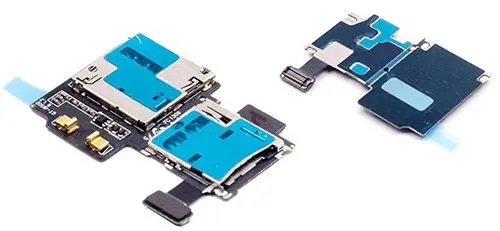
The repair itself is not complicated, but it requires opening the Galaxy S4 and handling some very delicate parts, so we must be extremely careful and measure the force we apply, or we can damage our device.
Phone repair is a delicate operation that requires some experience and skill. We are not responsible for any damage you may cause to your device during the repair process.
Fixing the “SIM Card Removed” Error
Once we have received our replacement part, we can begin repairing the Galaxy S4.
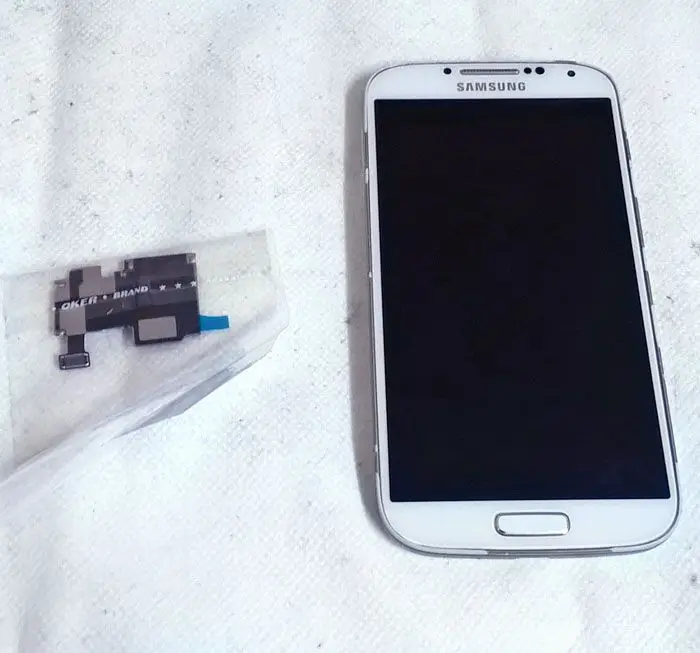
We start by removing the back cover and the battery.
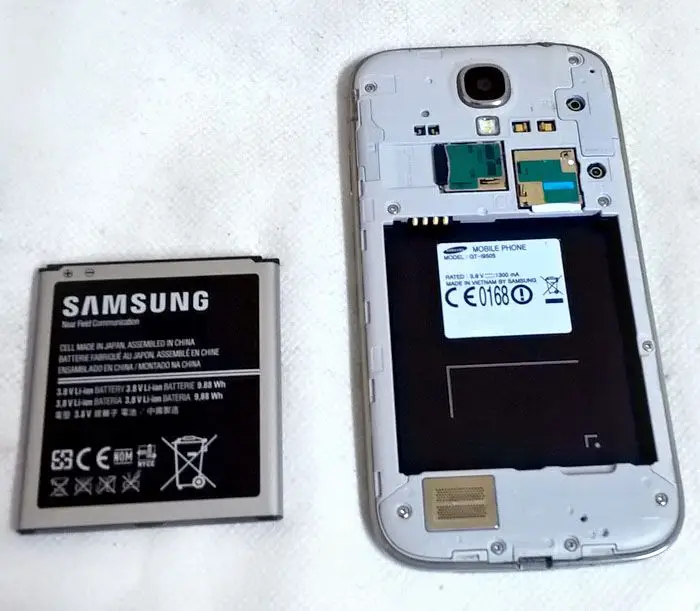
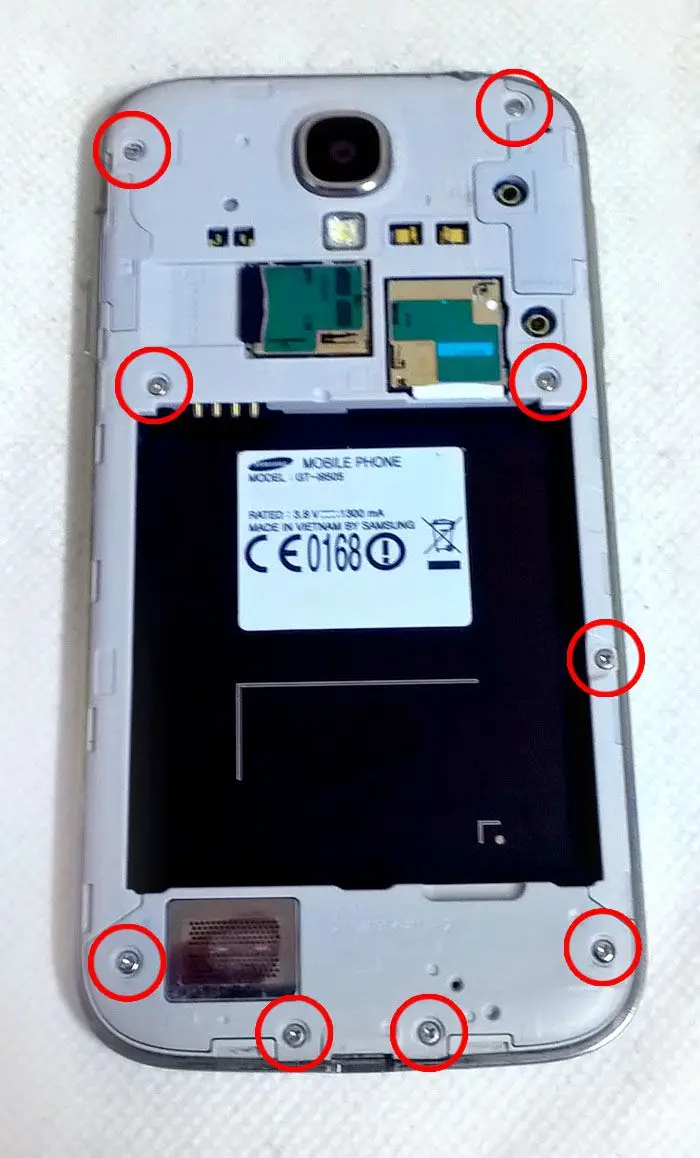
Next, we remove the screws indicated in the following image.
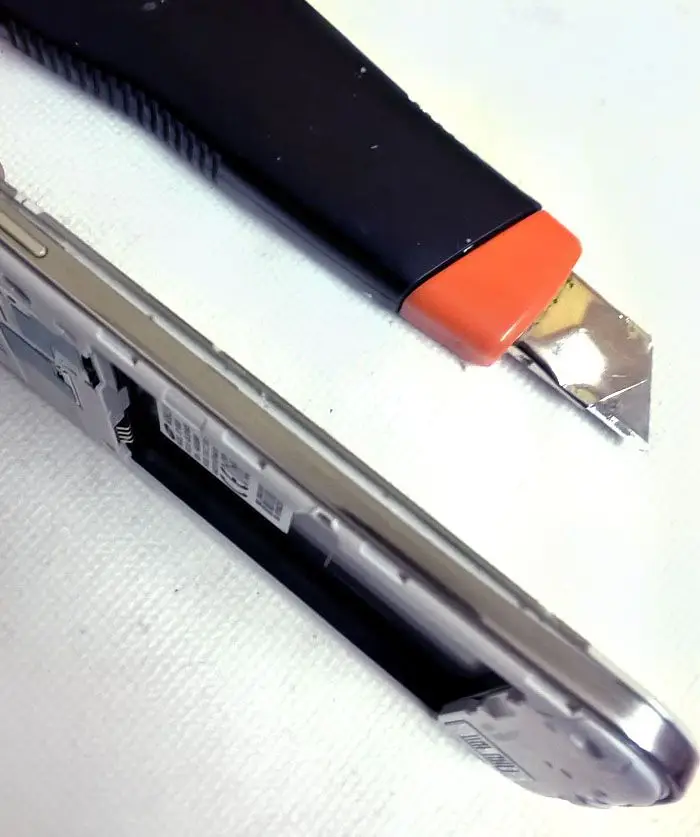
Now comes the delicate part of separating the mid-frame from the front frame. Using a tool, we gently pry along the seam, all around the outline. Be extremely careful in this step, as it is easy to break any of the thin plastic parts.
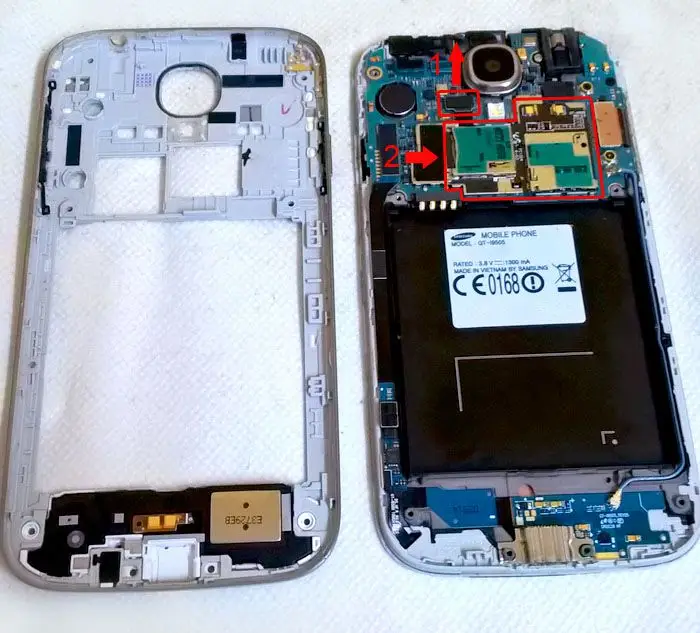
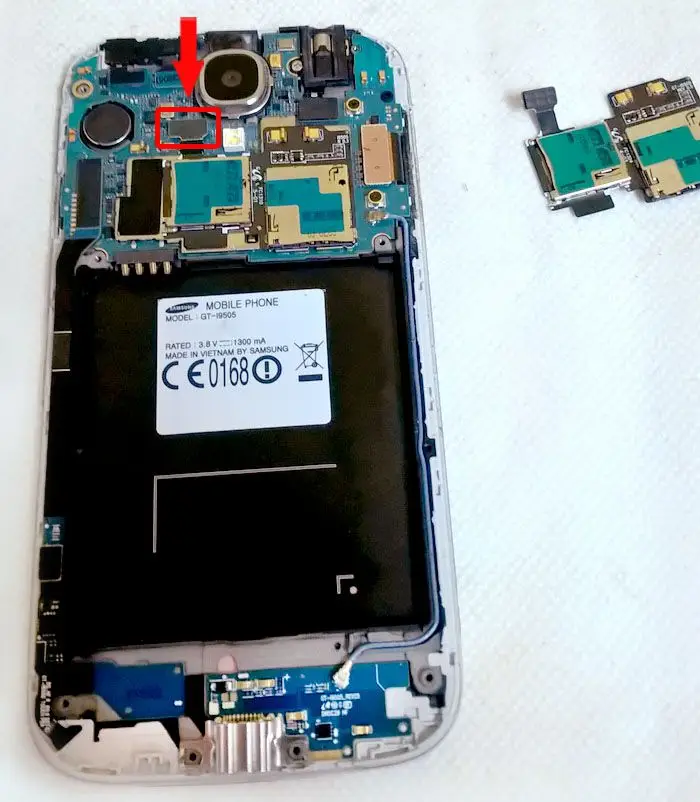
Once we have removed the mid-frame, we will see the internal components of the Galaxy S4. To remove the SIM holder piece, we start by disconnecting the cable that connects it to the motherboard.
The piece is attached to the rest of the phone only by adhesive. We gently remove the piece, taking great care not to damage the piece it is glued to.
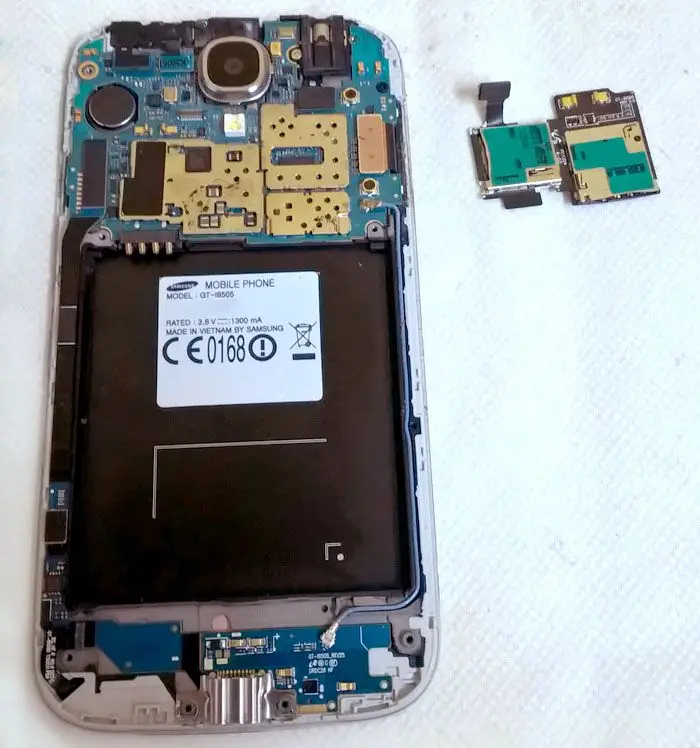
Now, on the replacement piece we bought, we remove the plastic that protects the adhesive.
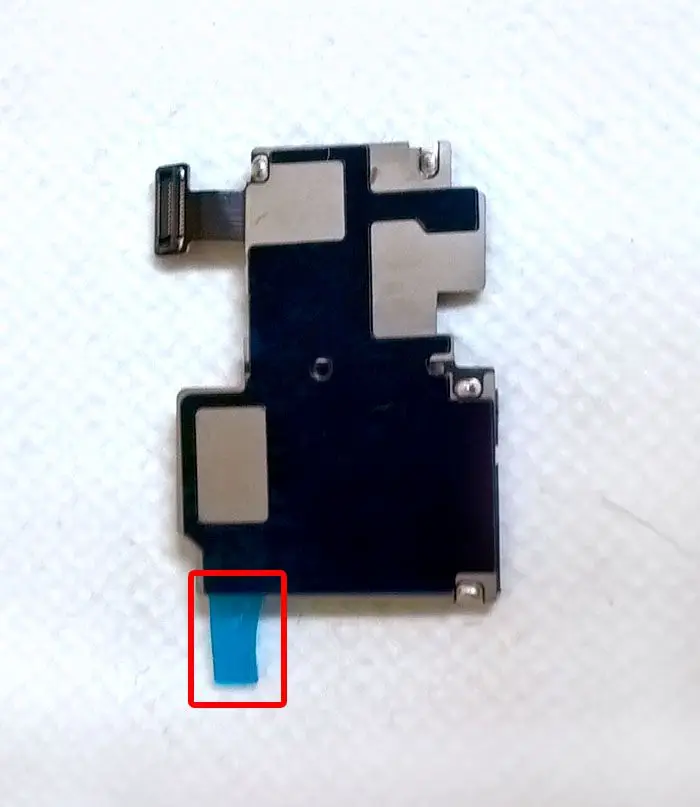
We place the piece, paying attention so that it is in the same position as the previous one. Once installed, we reconnect the cable that connects the piece to the rest of the phone.
Finally, we close the case again, being careful not to damage any components and paying special attention that the side buttons fit correctly.
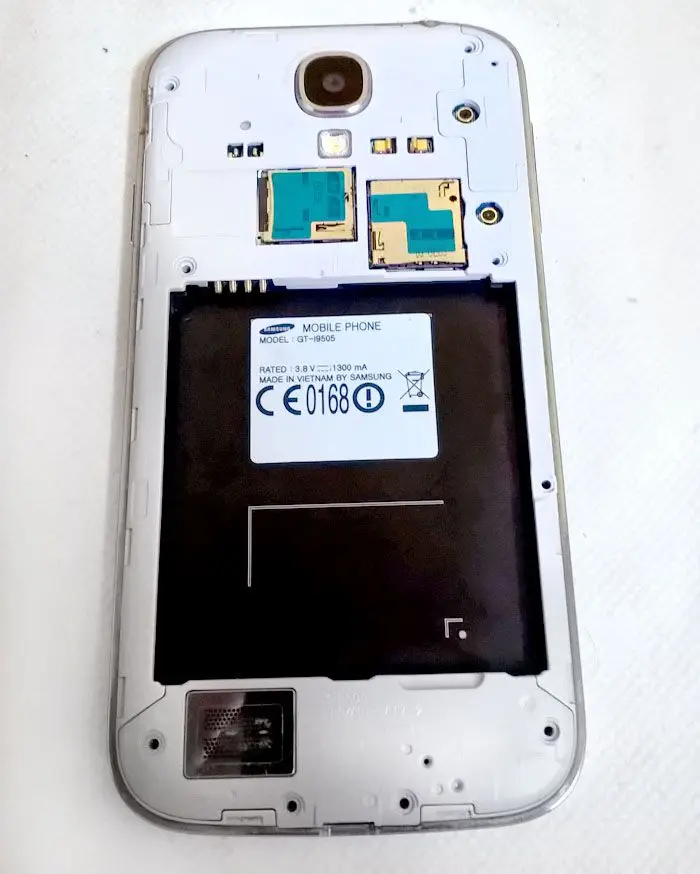
We start our Galaxy S4 and, if we have been lucky and the repair was done correctly, we can forget about the “SIM Card Removed” message.
Although it is very likely, it is not absolutely certain that your phone’s fault is due to this component. If the message continues to appear, you can try restoring the phone to factory conditions or trying another SIM card.