
Let’s see how to create a new project in C++ with Visual Studio Code, how to run it, and debug it.
Once we have VS Code installed, the compiler, and the extensions installed, create a new folder for the project (to better organize your project) and open this folder in VSCode with File > Open Folder.
Now create a new C++ file by clicking File > New File (or pressing Ctrl+N), named main.cpp (for example).
In this file, paste this code.
#include <iostream>

int main() {
    std::cout << "Hello, world in C++ from LuisLlamas.es!" << std::endl;
    return 0;
}
We will see each line in detail later. For now, don’t worry, we are just setting up the environment.
You already have a very simple program. Now let’s run it 👇.
Run the code
From VSCode
To launch our code from Visual Studio Code, press F5. The first time, a dropdown will appear to choose the debugger.

Select C++ (GDB/LLLDB) and another dropdown will appear to choose the configuration.
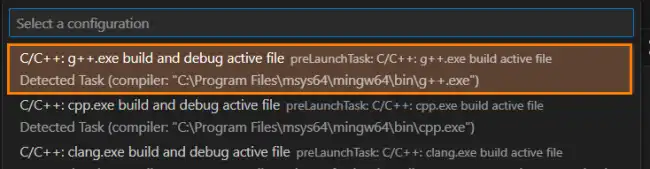
Here we choose C/C++ g++ build and debug active file and (finally) the program will run.
In the Terminal tab, you will see the program’s output (which includes a command with several lines). And at the end, the output message.
Hello, world in C++ from LuisLlamas.es!
Congratulations, you now have VSCode configured to work with C++ 🎉.
The next times you want to run the program, simply press F5, and it will launch without having to choose anything from dropdowns.
From the terminal
Alternatively, if you want to do the compilation manually, you could do it like this. First, compile the code using GCC with the following command:
g++ hola_mundo.cpp -o hola_mundo
Now it will create an executable file, which we can run (obviously, because it’s executable 😆).
hola_mundo.exe
./hola_mundo
Configuration of compilation and execution tasks
The VSCode configuration for compilation and debugging is based on two files tasks.json and launch.json, which are saved in the project folder (in the .vscode subfolder).
- tasks.json: Configures automatic tasks (for example, compiling code).
- launch.json: Configures the debugger and program execution within VSCode.
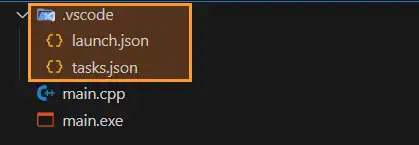
Launch.json file
The launch.json file is used to configure the debugger in VSCode. At first this step is optional (we will use it when we want to configure advanced parameters in the debugger).
To do this, go to Run > Add Configuration…. It will create an empty launch.json file. We can add configurations by clicking the Add Configuration... button.
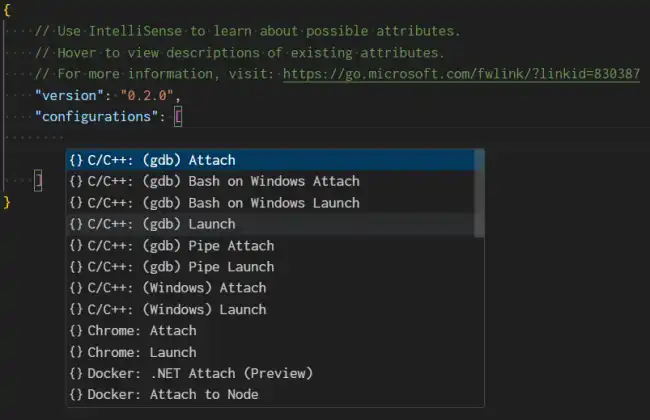
The file will look something like the following.
{ “version”: “0.2.0”, “configurations”: [ { “name”: “(gdb) Launch”, “type”: “cppdbg”, “request”: “launch”, “program”: “
]
}
For it to work for you, you will need to adjust the parameters.
In particular, in this example, you will need to change this line
"program": "enter program name, for example ${workspaceFolder}/a.exe",
To the path where you saved the file in the Tasks.json file.
"program": "${fileDirname}\\${fileBasenameNoExtension}.exe",
Some of the parameters in the launch.json file are.
| Field | Description |
|---|---|
program | The executable to be run (for example, the compiled main file). |
args | Arguments that will be passed to the program when it runs (in this case, none). |
stopAtEntry | Whether to stop execution at the program’s entry point. |
preLaunchTask | Here you can specify a task that will run before starting debugging (for example, the compilation task defined in tasks.json). |
