Softlinks (Symbolic Links), Junctions, and Hardlinks are three types of links that can be very useful for managing files and directories.
They are both frequently used in systems like Linux. However, although they are much less known in Windows, it is perfectly possible (and very useful) to use them.
To do this we can use the command
mklink /J /H /D name Folder
However, in Windows we can create and manage them very easily using the Link Shell Extension tool, which allows us to manage them very simply.
But first, let’s briefly review what Softlinks (Symbolic Links), Junctions, and Hardlinks are.
Basic Concepts
Softlink (Symbolic Link)
A Softlink, also known as a symbolic link, is a file that points to another file or directory. They function like shortcuts and are commonly used to create shortcuts to files or folders in different locations on the system.
For example, they are useful for creating shortcuts to files or folders in different locations without duplicating the content.
Hardlink
A Hardlink is a direct reference to the data of a specific file on the hard drive. Unlike Softlinks, Hardlinks point directly to the file’s data blocks, allowing multiple links to point to the same file without duplicating the data.
They allow us to maintain multiple accesses to a single file, useful for incremental backups and version control systems.
Junction
A Junction is a special type of Softlink used for directories. It allows one directory to point to another, creating a link between them. This is useful for redirecting access to folders without physically moving the content.
Ideal for redirecting access to directories, facilitating the organization and administration of large directory structures.
Installing Link Shell Extension
Link Shell Extension is a free tool that facilitates the creation and management of Softlinks, Hardlinks, and Junctions in Windows.
To install it, simply visit the official page Link Shell Extension and download the appropriate installer for your version of Windows.
Run the installer and follow the on-screen instructions to complete the installation.
How to Use Link Shell Extension
Using Link Shell Extension is very simple. The options appear in the context menu of the file explorer.
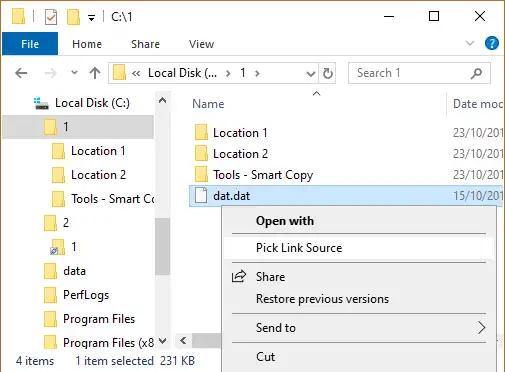
To do this, first select the file or directory to which you want to create the link. Right-click on it and choose “Pick Link Source”.
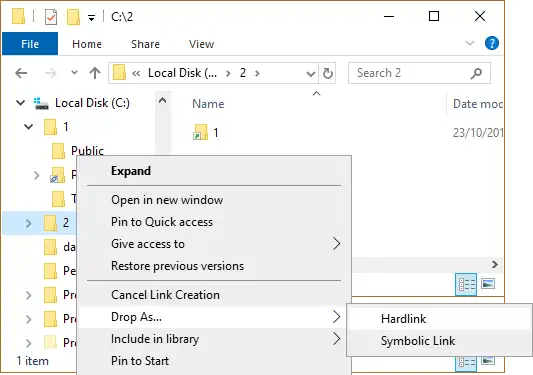
Now go to the location where you want to create the link, right-click and select “Drop As” > “Symbolic Link”.