
One of the latest features incorporated into Chrome and one of the most celebrated is the ability to create tab groups.
Tab groups allow you to reorder, save, close, or collapse tabs collectively. A feature that delights fans of having multiple tabs open.
Although Microsoft Edge shares much of its core with Chrome, Edge users will find that tab groups are not yet available.
Fortunately, you should know that it is very easy to enable tab groups in Microsoft Edge, through the experimental features options.
To do this, we simply need to access the corresponding settings window. To do so, enter the following in the address bar:
edge://flags/
A Microsoft Edge configuration page will appear with a lot of additional options and experimental features that we can modify.
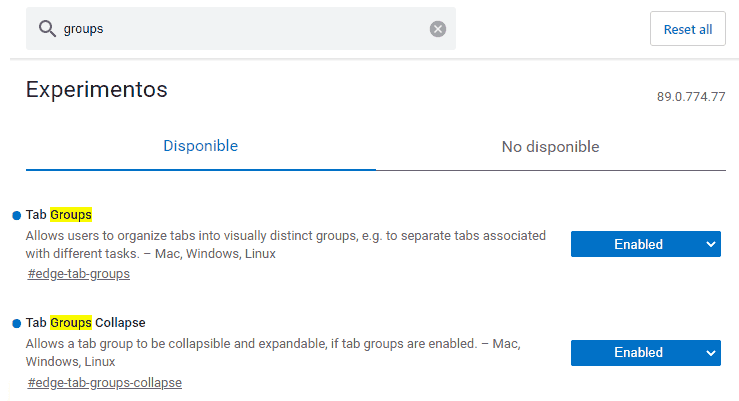
To find the tab grouping functions, filter the available options by typing ‘group’ in the filter and select the options you want.
Next, restart Microsoft Edge and, when you reopen it, you will have the tab grouping functions available by right-clicking on an open tab.
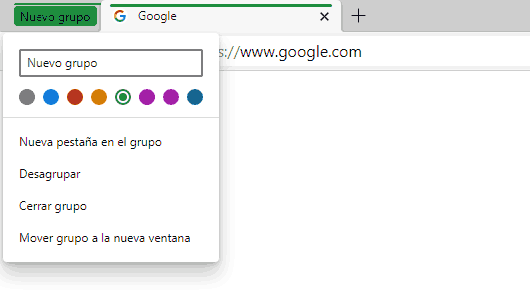
Just like in Chrome, it is possible to assign a name and a color to a tab group, as well as ungroup, close tab groups, and the rest of the functionalities found in Google’s browser.
That’s how easy it is for you to enjoy tab grouping in Microsoft Edge while we wait for this feature to be available by default soon (hopefully shortly).
