
If you have installed the latest Windows 10 2004 update, from 06/2020, you may have noticed that the size and spacing of certain Windows elements has increased on your computer.
Microsoft’s goal with this change is to facilitate convergence between desktop computers, tablets, 2-in-1 devices, and other devices.
Therefore, these changes have not been applied to all devices. In principle, the changes will only have been applied to your device if it has a touchscreen, belongs to a family of devices that could have one, or because Microsoft felt like it for no particular reason.
These appearance changes cannot be modified from the “traditional” Windows options, such as screen resolution, scaling, or appearance. If you check there, you’ll see they are as they always were.
The increase in dimensions and margins affects both the display in File Explorer and elements in the Start menu, the taskbar, among other various Windows interface elements.
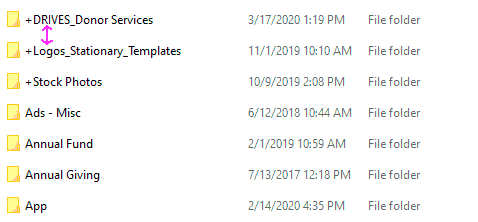

Some users may find these changes annoying, especially when using the device as a PC with a keyboard and mouse. The size of these elements is excessively large, resulting in wasted screen space and displaying less information.
This increase in dimensions makes even less sense considering that Windows 10 already includes a “Tablet” mode that, precisely, makes modifications to the interface to make it more suitable for touchscreen use.
It’s probably a matter of getting used to it, and in a short time, the new display would seem normal to us. But if (as is my case) you don’t feel like it, you should know that, fortunately, it’s easy to undo these changes from the Tablet options menu.
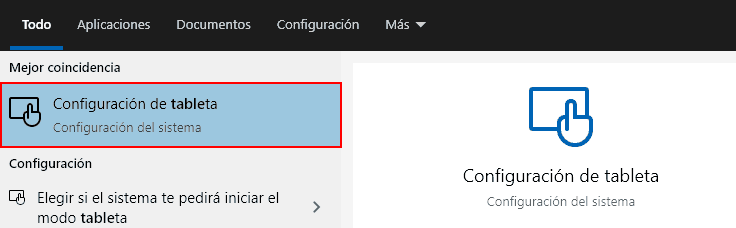
To do this, press the Start button and type “Tablet” and select ‘Tablet Settings’
Next, click on “Change additional tablet settings”
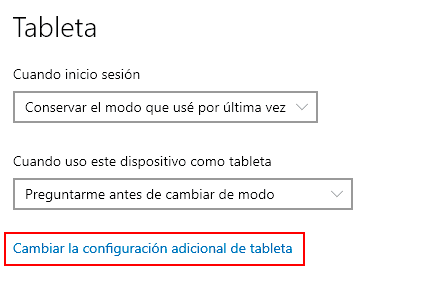
And here, disable all the options under “When I’m not using tablet mode”
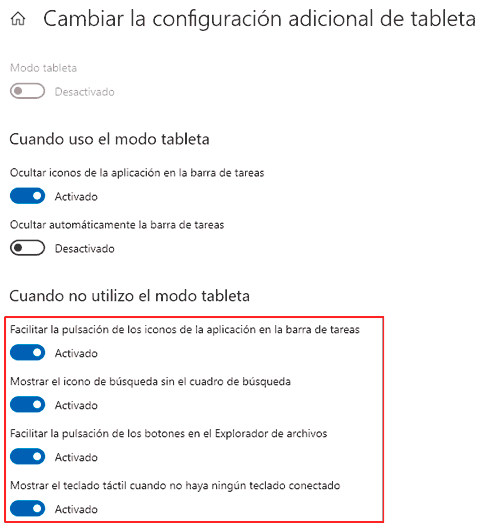
It’s that simple! You will have recovered the usual Windows 10 display and can work normally.
