

Visual Studio Code (VS Code) is a free, lightweight, and highly customizable code editor that we can use for C++ development.
VSCode does not include compilers by itself (it’s just a text editor). To work with C++ we will need a compiler like GCC (g++) and the GDB debugger.
- GCC (GNU Compiler Collection) is a set of compilers developed by the GNU project, which includes compilers for several programming languages, including C++.
- G++ is specifically the GCC compiler for C++.
- GDB is the GNU debugger. It allows us to stop execution at specific points, examine variables, and follow execution line by line to identify errors.
Installing Visual Studio Code
To begin, we must have Visual Studio Code installed on the computer. If you don’t have it yet, it’s very simple:
- Download Visual Studio Code: Go to the official Visual Studio Code page at https://code.visualstudio.com/ and download the version for your operating system (Windows, macOS, or Linux).
- Install VS Code: Follow the installation instructions for your system. Once completed, open VS Code.
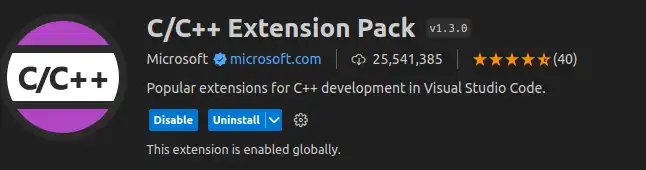
Additionally, we will need to install the VSCode extension for C++.
Installing the C++ Compiler
Visual Studio Code does not include a compiler, so we need to install one. On Windows systems, the most common option is MinGW, while on macOS and Linux, the GCC compiler can be used.
MinGW (Minimalist GNU for Windows) is a set of tools that provides a Unix-like experience on Windows. It includes GCC and other essential utilities for C++ programming.
To download MinGW, go to the official MinGW website MSYS2. Follow the installation instructions. During the process, make sure to select the C++ compiler (g++).
A console opens (a bit rough). From here we can install other tools, like MinGW for x64.
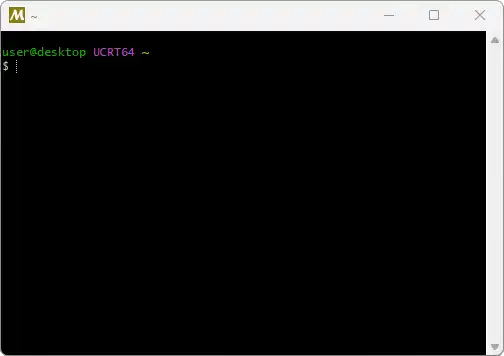
For example, we do:
pacman -S —needed base-devel mingw-w64-x86_64-toolchain
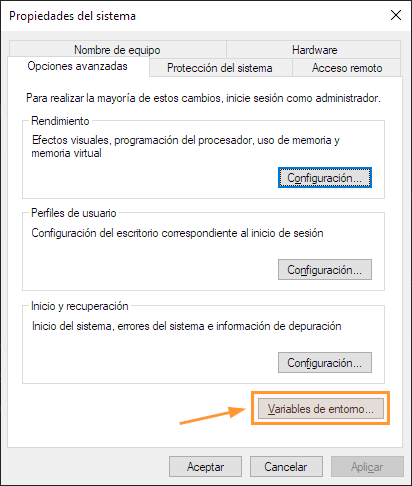
Now we have to configure the PATH variable so Windows can find the MinGW tools.
- Open the Control Panel and go to System > Advanced system settings.
- Click on Environment Variables, select the
Pathvariable, and add the path to the MinGWbindirectory (e.g.,C:\mingw-w64\bin).
It’s normal to already have GCC and G++ installed on your distribution. You can check with:
gcc -v
If it’s correctly installed, you will see something like this.
gcc version 9.4.0 (Ubuntu 9.4.0-lubuntul~20.04.2)
If you don’t have it installed, we can install it by executing from the terminal. For example, on a distribution like Ubuntu, we would do the following:
sudo apt-get update sudo apt-get install build-essential gdb
