WordPress is one of the most popular content management systems (CMS), known for its flexibility and ease of use.
Installing WordPress on a Raspberry Pi is an excellent way to learn about server and website administration while using a compact and affordable device.
In this article, we will guide you through the steps to install WordPress on your Raspberry Pi as part of a Raspberry Pi course.
Prepare the Environment
Update the System
It is crucial to have the system updated. Open a terminal and run:
sudo apt update sudo apt upgrade
Install Apache, MySQL, and PHP
WordPress needs a web server (Apache), a database (MySQL), and PHP to function. Let’s install these components.
Apache is a web server that will host your WordPress site:
sudo apt install apache2
Verify that Apache is running by opening your browser and accessing your Raspberry Pi’s IP address. You should see an Apache welcome page.
If you want to know more, check out this entry
MySQL is the database management system. Install it with:
sudo apt install mysql-server
After installation, we need to configure a password for the MySQL root user.
sudo mysql_secure_installation
Make sure to remember this password, as you will need it later.
If you want to know more, check out this entry
Install PHP
PHP is the programming language used by WordPress. Install it along with some necessary modules:
sudo apt install php libapache2-mod-php php-mysql
Restart Apache for the changes to take effect:
sudo systemctl restart apache2
If you want to know more, check out this entry
Configure MySQL for WordPress
Access MySQL
Access the MySQL command line:
sudo mysql -u root -p
Enter the password you configured during the MySQL installation.
Create a Database and User
Within the MySQL client, run the following commands to create a database and a user for WordPress:
CREATE DATABASE wordpress;
CREATE USER 'wordpressuser'@'localhost' IDENTIFIED BY 'yourpassword';
GRANT ALL PRIVILEGES ON wordpress.* TO 'wordpressuser'@'localhost';
FLUSH PRIVILEGES;
EXIT;
Replace yourpassword with a secure password for the wordpressuser user.
Download and Install WordPress
Download WordPress
First, navigate to the Apache web directory:
cd /var/www/html
Download the latest version of WordPress:
sudo wget https://wordpress.org/latest.tar.gz
Extract the downloaded file:
sudo tar xzvf latest.tar.gz
This will create a directory called wordpress. Move the contents of this directory to the Apache root directory:
sudo mv wordpress/* .
Configure WordPress
Rename the configuration file:
sudo cp wp-config-sample.php wp-config.php
Edit the configuration file to add the database information:
sudo nano wp-config.php
Find the following lines and update them with your database information:
define('DB_NAME', 'wordpress');
define('DB_USER', 'wordpressuser');
define('DB_PASSWORD', 'yourpassword');
define('DB_HOST', 'localhost');
Save the file (CTRL + X, then Y and Enter).
Adjust Permissions
Make sure Apache has access to the WordPress files:
sudo chown -R www-data
Complete the Installation via Browser
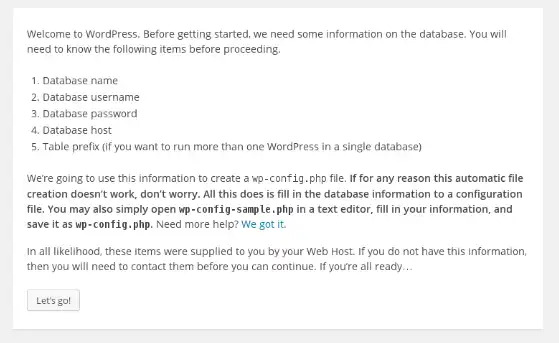
Now, open your web browser and access your Raspberry Pi’s IP address. You should see the WordPress installation page. Follow the instructions to set up your site, including:
- Choosing the language.
- Configuring the site name, administrator user, password, and email.
Access the Administration Panel
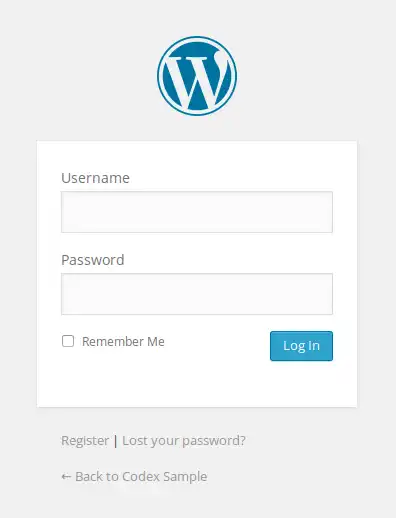
Once you complete the installation, you can access the WordPress administration panel via:
[your-ip-address]/wp-admin
Log in with the username and password you created during setup.