
As we have seen, JavaScript is a programming language that has been closely related to web development since its origin.
Thus, it is one of the three fundamental technologies of web development, along with HTML and CSS.
- HTML structures the content
- CSS styles the presentation (colors, layout)
- JavaScript provides logic and interaction
Although it is now truly a general-purpose language, one of its main uses remains adding interactivity and dynamism to our web pages.
So let’s see how we can add JavaScript to a webpage.
Adding JavaScript to a Webpage
There are mainly three methods for including JavaScript in HTML:
- Inline scripts (always avoid ❌)
- Internal scripts
- External scripts (the favorite 💚)
Let’s look at each of them in a very simple example, where we will have a button that shows an alert when clicked.
Inline Script
With this method, we write the JavaScript code directly inside an HTML attribute (like onclick, onmouseover, etc)
<!DOCTYPE html>
<html lang="es">
<head>
  <title>Ejemplo de Inline JavaScript</title>
</head>
<body>
  <button onclick="alert('¡Hola, mundo!')">Haz clic aquí</button>
</body>
</html>
In this example, when the user clicks the button, JavaScript executes an alert in the browser.
This approach is the least recommended because it can make code maintenance difficult. In general, don’t do it
Internal Script
We can write the JavaScript code directly in the HTML file using a <script> tag within the document body.
This allows us to centralize the JavaScript code in a single block.
<!DOCTYPE html>
<html lang="es">
<head>
  <title>Ejemplo de Script Interno</title>
</head>
<body>
  <button id="miBoton">Haz clic aquí</button>

  <script>
    document.getElementById("miBoton").addEventListener("click", function() {
      alert("¡Hola, mundo desde un script interno!");
    });
  </script>
</body>
</html>
In this example
- We use
getElementByIdto refer to the button by itsid - Then, we use
addEventListenerto make theclickevent show the message.
This method is useful for small pages, but can become chaotic if the code grows too much. In general, it is also not recommended (except in very specific cases)
External Script
This is the most recommended method. We write the JavaScript code in a separate file with a .js extension and link it to the HTML file.
For this we use the src attribute in the <script> tag.
<!DOCTYPE html>
<html lang="es">
<head>
  <title>Ejemplo de Script Externo</title>
  <script src="scripts/miScript.js" defer></script>
</head>
<body>
  <button id="miBoton">Haz clic aquí</button>
</body>
</html>
document.getElementById("miBoton").addEventListener("click", function() {
  alert("¡Hola, mundo desde un script externo!");
});
This is the normal and recommended method💚. Generally this is the one we will always use.
::::
::::
In the examples there are several functions we haven’t seen, like the alert function, which shows a dialog box.

Don’t worry too much about it, it’s just for the examples. We will see it in the rest of the articles.
Script Placement
When we use the <script> tag in the HTML document (with internal or external file), its position within the document affects the script’s behavior.
Let’s look at the most common options:
In the header ()
<head>
    <script src="script.js"></script>
</head>
- Scripts in
<head>are loaded before the page renders - Can block rendering if the script is large
At the end of the body ()
<body>
    <script src="script.js"></script>
</body>
- HTML content loads first
This made more sense in the past. Currently it is preferable to use defer and async tags to control this behavior.
Using defer and async
When linking external JavaScript files, we can use the attributes defer or async to control the execution timing.
| Attribute | Parallelization | Execution Order |
|---|---|---|
| none | ❌ | After HTML |
defer | ✅ | After HTML |
async | ✅ | When JS is downloaded |
No attributes
The browser pauses HTML processing until the script is downloaded and executed.
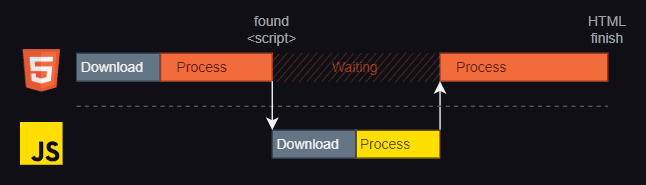
<script src="script.js"></script>
With defer
The script is downloaded in parallel with HTML rendering, and is executed after the HTML has been processed.
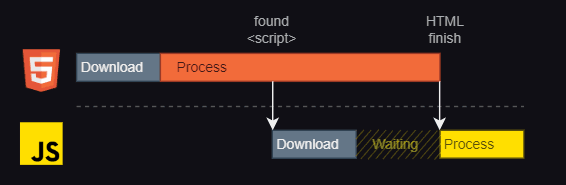
<script src="script.js" defer></script>
With async
The script is downloaded in parallel and executed as soon as it is downloaded.
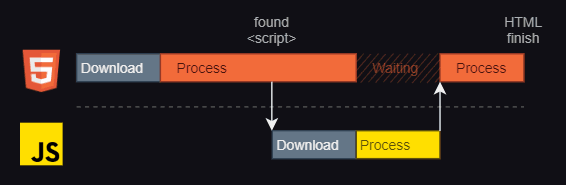
This can happen before the HTML has been processed (in this case HTML processing is paused while the JS is processed)
<script src="script.js" async></script>
JavaScript Modules
With ECMAScript 6, native support for modules was introduced in JavaScript.
To use this functionality, we declare a file as a module using the type="module" attribute:
<script type="module" src="module.js"></script>
We will see modules in their own article
