
VLC is a free and open-source multimedia player, known as VLC Media Player and developed by the VideoLAN project.
VLC supports a wide variety of audio and video formats, which has made it one of the most well-known tools for playing almost any type of multimedia file.
Furthermore, VLC offers many additional functions, such as the ability to stream live content, convert files between different formats, and adjust playback settings according to the user’s needs.
Its interface is quite simple and it is widely used on different operating systems, such as Windows, macOS, Linux, iOS, and Android.
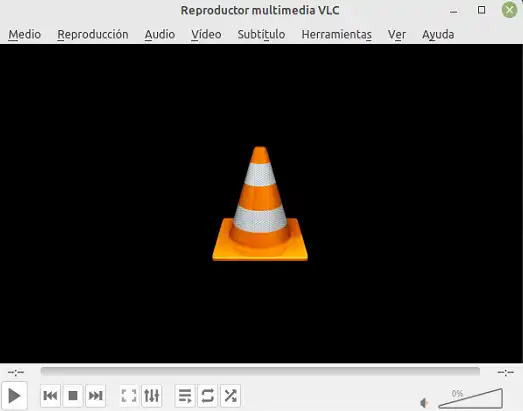
Some of the most important features of VLC are:
- Format Compatibility: Plays an extensive range of video and audio formats, including MP4, AVI, MKV, MP3, FLAC, and many more.
- Transcoding: Allows converting files from one format to another.
- Network Playback: Supports streaming multimedia content over local networks or the Internet.
- Customizable Interface: Offers a graphical interface that can be adjusted to your preferences.
- Subtitles and Audio: Supports multiple subtitle and audio tracks, making it easy to play content in different languages.
For more information about advanced configuration and VLC add-ons, consult the official Kodi documentation.
Installing VLC on Raspberry Pi
To install VLC on our Raspberry Pi, we first make sure the system is updated before starting the installation. To do this, we run these commands:
sudo apt update sudo apt upgrade
Then, to install VLC, we use the following command in the terminal:
sudo apt install vlc
This command will download and install VLC along with all necessary dependencies.
Once the installation is complete, we verify that VLC is correctly installed by running:
vlc
This should open the VLC graphical interface on our Raspberry Pi.
Using VLC on Raspberry Pi
Web Interface
In addition to its traditional user interface, VLC also has a web interface that you can use to control the playback of your multimedia content remotely. This can be especially useful if you need to access VLC from another device, such as a computer or a mobile device.
To use VLC’s web interface, you must first ensure that VLC is running on your Raspberry Pi. In “Options / (select All) / Main interfaces” activate “http”. Now set the password in the “Lua” section.
Then, open a web browser on another device and type the IP address of your Raspberry Pi followed by “:8080”. For example, if your IP address is “192.168.1.100”, you should type “192.168.1.100:8080” in your browser’s address bar.
Controlling VLC from the Command Line
VLC can also be controlled from the command line, which is useful for automation or integration with other scripts. Some basic commands include:
| Command | Description |
|---|---|
vlc [file] | Plays the specified file. |
vlc -I rc | Starts VLC in console mode and allows control via commands. |
vlc -f | Plays the file in full screen. |
vlc -L | Displays the list of files in the VLC library. |
vlc -p | Shows a preview of the file in a pop-up window. |
vlc -s | Sets the file to no-GUI mode (graphical user interface). |
These are just a few examples of the commands you can use to control VLC from the console. To see a complete list of options, you can type the command “vlc —help” in the Terminal.
