

The WebP format is a highly efficient image format in terms of size and quality, and it is becoming increasingly common on the web.
WebP has many advantages over JPG or PNG
- Superior Compression: WebP can reduce image size without sacrificing visual quality. This results in faster loading times for web pages.
- Transparency Support: Like PNG, WebP supports images with transparency, but generally with smaller file sizes.
- Lossy and Lossless Compression: WebP offers both lossy and lossless compression, providing flexibility based on quality and size needs.
However, configuring Internet Information Services (IIS) to serve this type of image can be a challenge, as IIS does not recognize the WebP format as a legitimate MIME type by default.
Incredible… 🤡.
But, fortunately, this can be easily solved with a few steps. To enable WebP image support in IIS, we do this:
Open IIS Manager First, we need to open IIS Manager. We can do this by searching for “IIS Manager” in the start menu or running
inetmgrfrom the run window (Win + R).Select the Main Server Click on the main server in the left panel to ensure we are making the change at the server level (rather than at the site level). This will apply the configuration to all websites running on the IIS server.
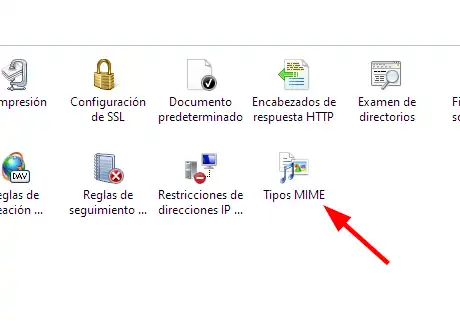
Access MIME Types In the right panel, look for and click on the MIME Types option. This will open a list of all MIME types currently configured in IIS.
Add a New MIME Type In the right panel of the MIME Types window, click on the Add… link. This will open a dialog box where we can specify a new MIME type.
Configure the MIME Type for WebP To add a new WebP MIME type as an image type, enter
.webpas the file name extension andimage/webpas the MIME type. Then, click OK.

- Verify the Configuration After adding the MIME type, we should see
.webplisted among the MIME types in IIS. Now, if we reload our Chrome browser (or another compatible browser), we should be able to correctly see both WebP image files.
