
Remmina is an open-source remote desktop application designed to provide remote access to other computers.
It supports various protocols, including RDP, VNC, SSH, and SFTP, and, personally, it’s my favorite remote desktop viewer for Linux. A little gem 💎.
Main Features of Remmina,
- Multi-protocol support: RDP, VNC, SSH, SFTP, among others.
- Intuitive user interface: Easy to use, with accessible configuration options.
- Connection management: Allows saving and organizing multiple remote connections.
- Cross-platform support: Available for Linux, Windows, and macOS.
Remmina is Open Source and all its code and documentation are available on the official page Remmina and the project repository.
Installing Remmina on Raspberry Pi
As always, the first step is to ensure the system is updated before installing new packages. Open the terminal and run this command:
sudo apt update sudo apt upgrade
Remmina is available in the official Raspberry Pi OS repositories. You can install it with the following command:
sudo apt install remmina remmina-plugin-rdp remmina-plugin-vnc remmina-plugin-ssh
This command will download and install Remmina. Now we need to download the plugins we want for the protocols we want to use, being able to choose between RDP, VNC, and SSH (or several of them).
sudo apt remmina-plugin-rdp sudo apt remmina-plugin-vnc sudo apt remmina-plugin-ssh
After installation, you can verify that Remmina has been installed correctly by running:
remmina —version
You should see the version of Remmina that has been installed.
Basic Usage of Remmina
Once installed, you can start using Remmina to connect to other systems remotely. To start Remmina, open the terminal and run:
remmina
You can also find Remmina in your desktop environment’s application menu.
To set up a new remote connection, open the wizard to create a new connection.
Fill in the necessary data:
- Connection Name: A descriptive name for the connection.
- Protocol: Select the appropriate protocol (RDP, VNC, SSH, etc.).
- Server Address: The IP address or hostname of the remote system.
- Username and Password: Credentials needed to access the remote system.
Finally, save the connection.
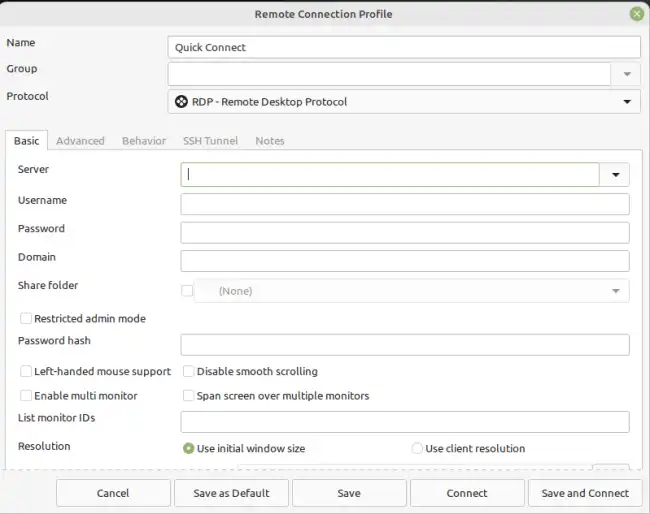
Once everything is configured, select the connection you created. When you click “Connect”, you will be prompted to enter the login credentials for the remote Windows computer.
Once authenticated, you should see the remote computer’s desktop on your screen. It’s that easy!
