

We continue with the series of posts about Raspberry Pi by seeing how to manage processes from the command line in a Linux-based system like Raspbian.
In any operating system, we will need to work with processes. In fact, we do it every time a command is executed. Moreover, we do it even just by running a terminal or connecting via ssh.
Managing processes, that is, checking which processes are running, launching processes in the background, or terminating them, is a common task you will need to get used to in order to get the most out of your Raspberry Pi.
In this post, we will see how to manage processes in a Linux system like Raspbian on Raspberry Pi.
Playground
Execute Processes
To execute a command, we simply write its name.
#execute command comando
If instead of a command we want to run an executable file in the current folder, we would do the following.
#run application in current folder ./aplicacion
Where it is necessary for the executable file to have execution permissions.
If during the execution of a command or application we want to cancel its execution, we press the key combination:
#cancel command control + c
Manage Processes in the Background
When we execute a command or application in the console, it remains blocked until the command finishes. If we want the execution to happen in the background, we add the ’&’ key like this:
#start process in background comando &
If we want to put a command that is already running into the background, we can use the key combination:
#put process in background control + z
If we want to view the processes running in the background, we use the command:
#show background processes bg
And if we want to bring back the most recent process put in the background, we use:
#bring process to foreground fg
Show Running Processes
Another very common need is to know which processes are currently running on the machine. For this, we have several commands available.
To show the active processes in the system, we use the command:
#shows active processes ps: Shows the processes that are currently active in the system.

If instead, we want to see all processes running in the system, we can do:
#show all processes ps -ef
The previous commands show the processes in a list format. Alternatively, we can visualize in a way similar to ‘ps -ef’ with a blocking command that continuously shows the processes with the following command:
#show all processes top: Shows all running processes.

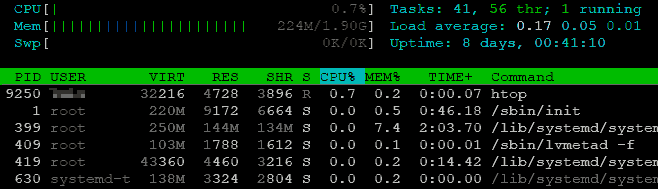
Finally, the previous command has a more visually appealing version that we can run with:
htop
Close Processes
Finally, sometimes we will need to terminate a running process. For this, we use the command:
#close a process kill PID
Where ‘PID’ is the process identifier that we can obtain with the ‘ps’ command.
Some processes need to use a “force close” to be terminated. We can do this by adding the ‘-9’ parameter:
#force close process by PID kill -9 PID
If we want to terminate a process by its name, we can use the ‘killall’ command, which will terminate all processes with the same name.
#terminate process by name killall -9 nombre
It’s that easy! With these few commands, we can manage processes in any Linux-based operating system like Raspbian on our Raspberry Pi.
