
SSHFS-Win Manager is a tool for Windows that allows us to mount remote directories via SSH as if they were local drives.
It is a graphical user interface (GUI) for SSHFS on Windows. SSHFS is a command-line tool that allows us to mount remote file systems.
SSHFS-Win Manager simplifies this process by providing an easy-to-use graphical interface. It’s very easy, very convenient.
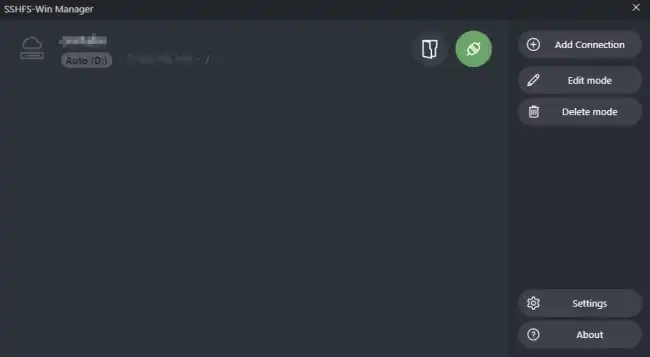
SSHFS-Win Manager makes this process accessible for users who prefer not to work with the command line or who are looking for a more intuitive way to handle remote file systems.
- Intuitive graphical interface: Everything is handled through a very convenient GUI
- SSH connection management: Stores and manages multiple SSH connection configurations
- Quick file system mounting: You can mount or unmount remote file systems with a click
- SSH key authentication support: Allows authentication using SSH keys for greater security.
GitHub - evsar3/sshfs-win-manager
How to Install SSHFS-Win Manager
Prerequisites
Before installing SSHFS-Win Manager, make sure you have the following components installed:
- WinFsp: This is the component that allows SSHFS to work on Windows. You can download and install it from here.
- SSHFS-Win: You must have SSHFS-Win installed on your system. Download it from here and follow the installation instructions.
Installing SSHFS-Win Manager
Once you have the prerequisites, installing SSHFS-Win Manager is really simple. Just
- Go to the SSHFS-Win Manager GitHub page
- Download the latest installation file (from the “Releases” section)
- Run the installer and follow the instructions to complete the installation
How to Configure and Use SSHFS-Win Manager
Once SSHFS-Win Manager is installed, open it. You will see a simple graphical interface that allows us to add and manage SSH connections.
Add a New SSH Connection
- Click the “Add New” button to create a new SSH connection
- Fill in the required fields
- In the authentication section, choose whether you want to use a password or a private key
- Click “Save” to save the connection configuration
Mount a Remote File System
Once you have configured a connection:
- Select the connection you want to use from the list
- Click “Mount” to mount the remote file system
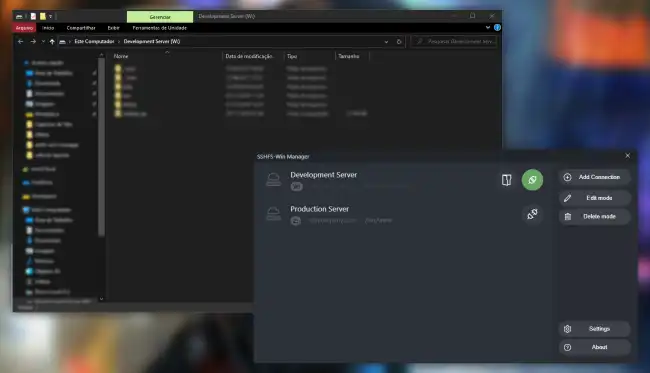
The remote file system will now appear as a drive in Windows File Explorer, and you can access it as if it were a local disk.
Unmount a File System
To unmount a mounted drive, simply:
- Select the connection in SSHFS-Win Manager
- Click “Unmount”
This will disconnect the remote file system from your computer.
