
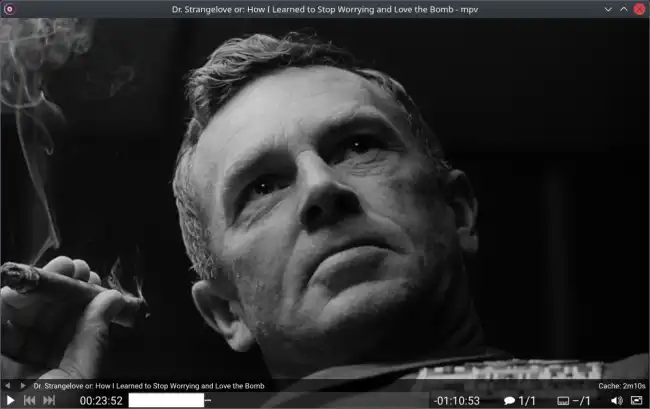
MPV is an open-source multimedia player that allows playback of a wide variety of audio and video formats, and is especially designed to run from the command line.
Based on the old MPlayer and mplayer2, MPV offers a wide range of features, support for multiple formats and a very simple interface, barely an overlay that shows information.
It is known for its ability to handle streams, its support for subtitles, and its advanced configuration, making it ideal for users seeking detailed control over media playback.
Some of its main features are,
- Command-line interface: Allows precise control via commands and configurable options.
- Support for multiple formats: Plays audio and video file formats without the need for additional codecs.
- Subtitle support: Handles various subtitle formats and allows their synchronization and adjustment.
- Advanced configuration: Offers extensive options to adjust video quality, audio, and other parameters.
Installing MPV on Raspberry Pi
To start using MPV on our Raspberry Pi, we first need to install it. MPV is available in the official Raspberry Pi OS repositories, so the installation is quite simple.
First, open a terminal and update the system packages to ensure we have the latest available version of MPV:
sudo apt update
Then, install MPV using the following command:
sudo apt install mpv
Once installed, verify the MPV version to ensure the installation was successful:
mpv —version
Basic Usage of MPV
MPV is primarily controlled through the command line. To play a video or audio file, use the following command:
mpv filename.ext
For example, to play a video named video.mp4, you would use:
mpv video.mp4
MPV can also play videos directly from a URL. For example:
Controlling Playback
MPV offers several control options you can use while a file is playing. Here are some examples of basic controls:
| Action | Command/Shortcut |
|---|---|
| Play/Pause | Space |
| Stop | q or Esc |
| Increase Volume | + or Up (up arrow) |
| Mute/Restore Volume | m |
| Decrease Volume | - or Down (down arrow) |
| Forward 10 seconds | → (right arrow) |
| Rewind 10 seconds | ← (left arrow) |
| Go to a specific time | t (then enter the time) |
| Fullscreen | f |
| Windowed Mode | Shift+f |
| Show/Hide the control bar | t |
| Show/Hide track information | i |
| Capture a screenshot | s |
These are just some of the basic commands, but MPV has many, many additional options and configurations you can explore.
You can consult the official documentation for more details on all available commands and configurations.
Quality and Aspect Configuration
You can adjust video quality and other parameters using command-line options. Here are some examples:
Adjust video quality:
mpv —vf=scale=1280:720 video.mp4
This scales the video to a resolution of 1280x720.
Set a network bandwidth limit:
mpv —limit-rate=1M http://example.com/stream.mp4
This limits the stream bandwidth to 1 MB/s.
