
Surely at some point you have had to perform some kind of image editing. For example, resizing an image, saving it in another format, compositing several images, adjusting brightness and contrast, or removing a flaw.
Of course, there are many programs for all kinds of image editing, some free and others not, with different types of tools, with varying degrees of success.
Today we are going to look at Paint.Net, a free, simple but very useful image editor for Windows that has the usual tools we will need for most image editing tasks.
The Paint.Net project started as a project developed by Washington State University (WSU) supervised by Microsoft, as an alternative to Microsoft’s own Paint. The replacement didn’t end up happening, but Paint.Net continued as an independent image editor project.
Paint.Net doesn’t have the power to compete with the major industry leaders, like Photoshop or GIMP, but it doesn’t aim to either. The goal is to provide a simple, easy-to-use image editor with enough tools for users’ common needs. And it fulfills its objective in an outstanding way.
Paint.Net’s interface is very intuitive and we will quickly feel comfortable with it. We have the typical toolbar, the top menu, and below it, the options for the selected tool.
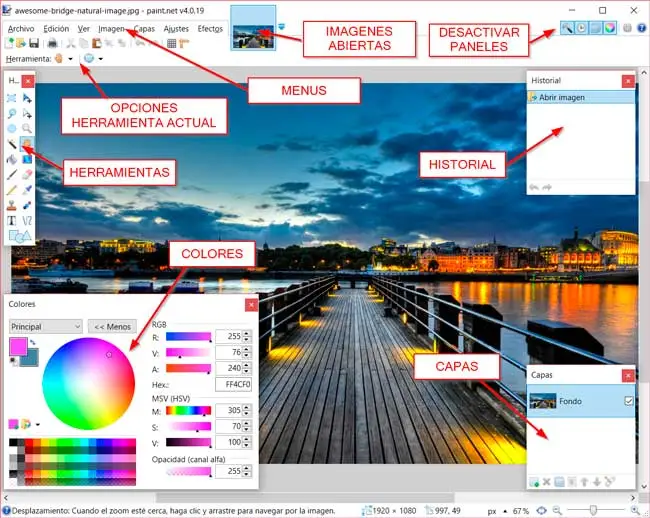
Among the available tools we have the usual selection tools (rectangle, circle, lasso, and magic wand), pencil, brush, eraser, eyedropper, and the all-powerful clone stamp. Regarding brushes, we can change both their size and hardness.
In addition to the toolbar, we have floating panels for the color palette, layer control, and history. At the top, we have thumbnail views of the open images to switch between them.
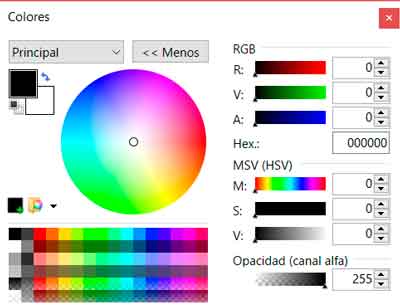
The color palette allows selecting the primary and secondary colors. We can view or select colors in different modes (RGB, HLS, HEX) and also change the opacity.
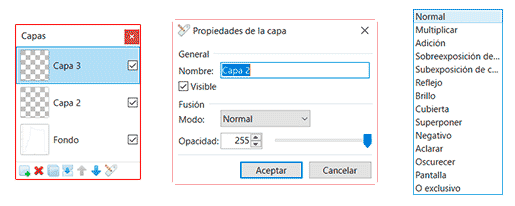
The layers panel allows creating or deleting layers, changing their order, and changing the blending mode, with the usual ones available (multiply, overlay, lighten, darken, etc…).
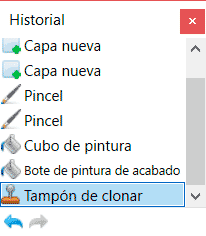
The history panel stores all the actions we perform on the image, allowing us to revert to any previous state at any time. That is, an enhanced undo/redo, typical in editing software.
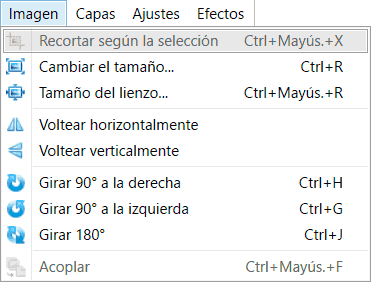
From the edit menu, we can access most of the basic transformations, which include resizing the image, resizing the canvas, cropping the selection, rotating the image, or performing symmetries.
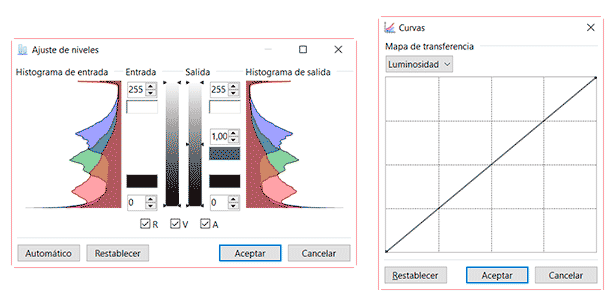
For its part, the adjustments menu contains the usual tools, such as adjusting brightness and contrast, levels, or color curves.
Finally, we also have a menu of effects and filters, with blur, sharpen, pixelation effects, among many others.
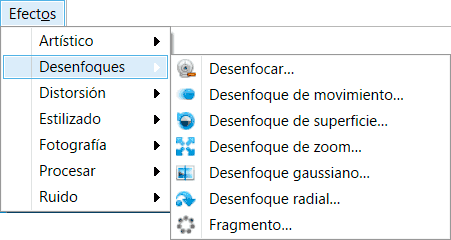
As you can see, Paint.NET has the options and tools found in most editing programs, without complications or frills, even some that we usually only find in the leading programs.
Paint.NET was released under the open-source MIT license, but since version 3.36 it became freeware, with only certain parts remaining open source.
In summary, Paint.NET is a good image editor that stands out for its ease of use while providing the necessary tools for image editing for most users.
A program to add to our list of favorite tools. As we said, it is free, compatible with Windows 7 and later, and is available at https://www.getpaint.net.