
PowerToys is a suite of free and open-source software tools developed by Microsoft designed to enhance the user experience in Windows 10.
PowerToys includes a bunch of useful and customizable features, many of which arguably should be integrated into Windows. In fact, when a feature becomes popular, it sometimes gets integrated into later versions.
They include productivity enhancement tools, desktop and window management improvements, and other miscellaneous utilities.
We can install PowerToys directly from the Microsoft website at https://learn.microsoft.com/en-us/windows/powertoys/
The main configuration window allows you to enable and disable the various integrated tools, as well as configure them.
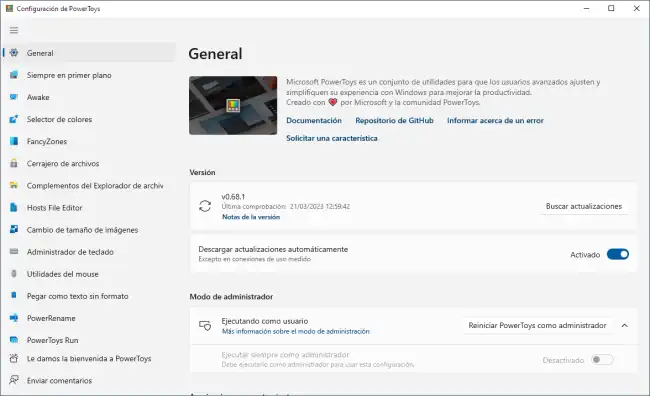
Here is a list of all the tools and functions included in PowerToys, ordered from those I find most useful to least,
- Always on Top allows you to pin windows on top of others
- Text Extractor a lightweight OCR tool for capturing text from images, which works quite well
- ColorPicker utility to select colors from the screen and get their RGB or HEX code
- Screen Ruler tool to measure screen elements and check alignment. Very useful when designing
- Mouse utilities adds new functionalities to the mouse like highlighting the mouse location (useful for presentations) or adding a crosshair to the cursor (useful for checking design alignment)
- File Locksmith tool to determine which process is locking a file
- Keyboard Manager allows adding keyboard shortcuts to Windows
- PowerToys Awake keeps the computer awake, preventing it from going to sleep. Useful if we need to run a periodic task, for example
- Paste as Plain Text pastes the clipboard text without formatting
- FancyZones window manager for creating complex window layouts
- PowerToys Run a dock for launching applications
- File Explorer add-ons enables preview for SVG, Markdown, and PDF files
- Video Conference Mute quickly mute the microphone when in a conference call
- Registry Preview utility to view .reg files
- Hosts File Editor a simple editor for the Hosts file
- Image Resizer tool for bulk image resizing
- PowerRename tool for bulk file renaming. Fairly limited in options
- Quick Accent allows adding accents when you have a keyboard that lacks the appropriate keys
- Keyboard Shortcut Guide shows the available keyboard shortcuts in Windows
All tools can be launched via keyboard shortcuts, which we can change. We can also customize the configuration options for each tool from the settings panel.
Some of these tools are very useful (others not so much, to be honest). For example, the OCR, the color picker, and the visual guides are tools you’ll get used to very quickly and will miss on a computer without PowerToys.
PowerToys and all its tools are Open Source, and all the code and documentation are available in the project repository at https://github.com/microsoft/PowerToys
