
Continuing with the Raspberry Pi tutorials, this time we will look at SSH, an essential tool that will allow us to control our Raspberry Pi remotely.
In many cases, we will not have our Raspberry Pi connected to a monitor and keyboard, but rather we will have it dedicated to other functions such as a web server or an IoT broker. Or even with a monitor and mouse, we will often want to control it remotely.
The usual ways to connect remotely are SSH and VNC (which we will see in the next post). SSH is the most commonly used, as it is fast and secure. It is a common tool in Unix-based computers, like Linux and Mac. Therefore, familiarizing ourselves with its use is almost essential.
SSH stands for Secure Shell (formerly known as Secure Socket Shell) and, basically, it allows us to start a command console on a remote computer easily and securely.
It works similarly to Telnet but adds encryption to the communication, so that packets sent by the client or server cannot be deciphered if intercepted.
SSH follows a client-server model. The client initiates a request to the server, which authenticates the communication and starts the Shell environment. Multiple clients can connect to the same server.
By default, SSH uses TCP port 22, although it can be easily changed. It uses RSA public cryptography for both connections. Encryption includes Blowfish, DES, and IDEA algorithms, with the latter being the default.
SSH has other very interesting uses. For example, we can copy files securely between two devices, or tunnel any connection from another application through a secure SSH channel. We will see these uses in upcoming posts.
Configure SSH on Raspberry Pi
To be able to connect to our Raspberry Pi, it will function as a server. Before we can connect, we have to enable the option in the configuration because, for security reasons, the SSH server is disabled by default in Raspbian.
To activate the SSH server in the Raspberry Pi configuration, check the post about configuring Raspberry Pi.
On the other hand, we must know the ‘address’ of the Raspberry Pi we want to connect to. Although, in theory, we can resolve the address with the computer name, name resolution is a process… somewhat unstable.
Therefore, if we want a reliable connection, it is very convenient for the Raspberry Pi to have a static IP assigned, as we saw in this post.
This connection, in principle, will only work on your local network. To be able to access from outside, through the Internet, you will need to configure port forwarding on your router. The complete process depends on your router, so you will have to consult the documentation for your model.
Connect via SSH to Raspberry Pi
If you are using Linux or Mac, then using SSH is very simple, as the Linux terminal includes native support for SSH connections. In Windows, we will need to download a client like Putty. We will see both processes below.
SSH Connection from Linux
To connect as a client to a Raspberry Pi, we simply open the terminal console and execute the following command:
ssh user@host
Where ‘user’ is the username on the Raspberry Pi server and ‘host’ is the IP address or the computer name we want to connect to.
For example, if we have the default Raspberry Pi user and we have configured a static IP 192.168.1.10:
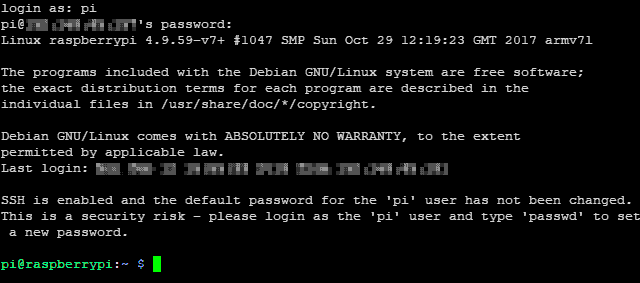
We will see a warning message indicating that we are using the default user. Keep in mind that the default Raspberry Pi username and password are well-known, and we are making it very easy for ‘the bad guys’ to get into our system.
It is a serious risk to expose a Raspberry Pi on the Internet with SSH enabled and the default user.
This is the reason why the SSH option is disabled by default. SSH is a powerful tool, and having it enabled by default was a risk, especially for novice users.
The solution is as simple as creating our own user and deleting the default one, a basic security measure we should do in any case. We will see this in a future post about user management.
SSH Connection from Windows
If we use Windows, we will need to use an SSH client to connect to Raspberry Pi. The most used client on Windows is Putty, which is Open Source and available at https://www.putty.org/.
Putty is a very useful and easy-to-use program, and it is a tool that has more uses than just making SSH connections. For example, it can also make Serial connections.
We download and run Putty and a window appears where we can enter the IP address (or name) of the Raspberry Pi. When connecting, we will be asked for the username and password.
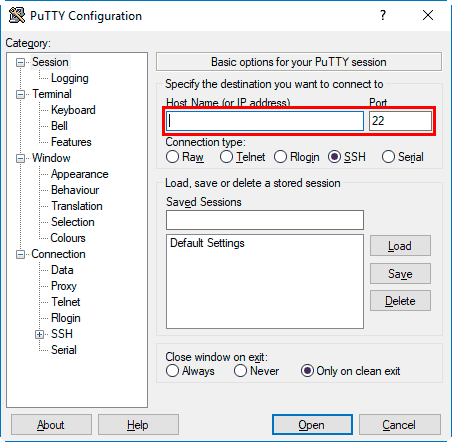
After login, we have a command window similar to the one we get in Linux or Mac. Optionally, we can save the connection by giving it a name. This way we can store connections to several servers and access them conveniently.
That’s how easy it is to make an SSH connection, an almost essential tool for working with Raspberry Pi (actually, with any Linux server).
In the next post, we will see how to set up a remote desktop with VNC, another way to access Raspberry Pi remotely.
