

In this post, we are going to see how to configure our Raspberry Pi to connect via WiFi, either through the graphical interface or via the command console.
Connecting a Raspberry Pi via LAN is useful in many cases, but logically having WiFi will give us freedom when working with it, installing it in our projects, or using it in IoT applications.
In the early versions of Raspbian, configuring WiFi could be a headache. But in modern versions the process has been greatly simplified and it is now really easy both via GUI and Terminal.
What hardware do we need?
If we are talking about a Raspberry Pi 3 or 3+, or Zero W, you’re in luck. These models have integrated WiFi, so we won’t need any additional components and we have the guarantee that it will work correctly.
In the rest of the models we will need to use a USB adapter (USB dongle). Fortunately, it is a very cheap device that can be found for 1-2€ from international sellers on AliExpress or eBay.
However, not all USB WiFi adapters are compatible with Raspberry Pi. Although significant improvements have been made recently and most are compatible, it’s a good idea to check compatibility before purchasing. In case of doubt, play it safe and choose one that specifically states it is compatible.
Configure WiFi via GUI
If you have access to the Raspberry Pi’s graphical interface, either with a keyboard, mouse, and monitor or via VPN, in the latest versions of Raspbian configuring WiFi is very easy.
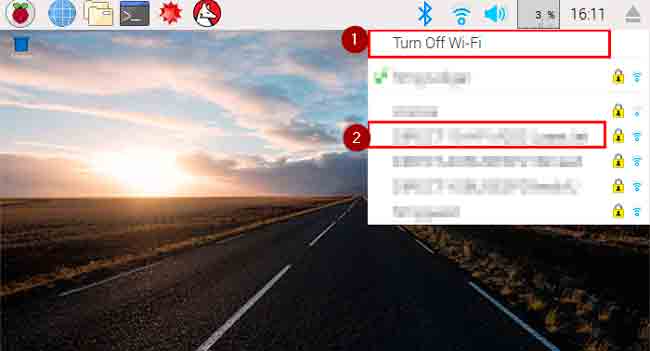
In the top right corner, we have a WiFi icon. We simply have to click it and select “Turn on WiFi”. Now, in the list of available networks, we select the WiFi we want and click on it to connect.
That simple! We can now browse and access our Raspberry Pi via WiFi.
Configure WiFi via terminal
If we don’t have access to the graphical interface, for example because we access via SSH, it is always possible to configure WiFi through the command console.
Configuring WiFi through the command console is terribly useful and frequent, as in many cases we don’t want to use the graphical interface at all.
It is even possible to pre-configure WiFi when installing the operating system, and leave it ready to be accessed via SSH or VPN, without ever having connected a keyboard or monitor. We will see this in a post, later on.
Configure the WiFi network
Once we know the network and password we want to connect to, we must edit the file /etc/wpa_supplicant/wpa_supplicant.conf
To do this, we use the command:
sudo nano /etc/wpa_supplicant/wpa_supplicant.conf
In this file, we add the following at the end of the file, changing the data to that of our WiFi.
network={
        ssid="your-wifi-name"
        psk="your-wifi-password"
        key_mgmt=WPA-PSK
}
So the file would look something like this:
ctrl_interface=DIR=/var/run/wpa_supplicant GROUP=netdev update_config=1 country=ES
network={ ssid=“your-wifi-name” psk=“your-wifi-password” key_mgmt=WPA-PSK }
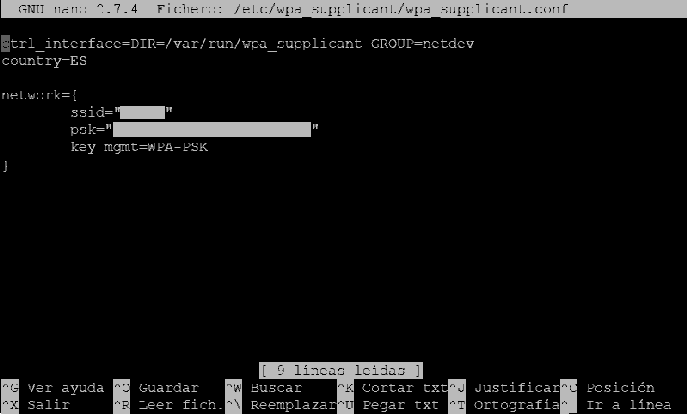
And we reboot the Raspberry Pi with the following command:
sudo reboot
Check connection
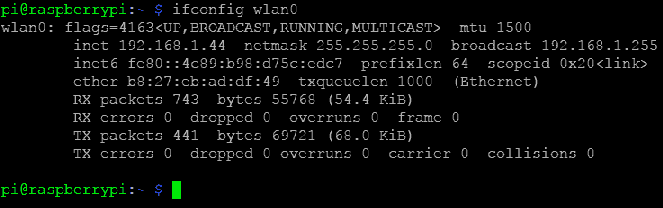
To check that we have connected correctly and get the IP assigned by the router we can use the following command
ifconfig wlan0
If everything went well we will see that we have an IP assigned. In the example image, it assigned us 192.168.1.44. Great, we now have WiFi configured!
In previous versions
In case you have to deal with an older version of Raspbian, or to avoid confusion if you find outdated tutorials on the internet, note that in previous versions WiFi configuration was done by editing the file /etc/network/interfaces
To do this, the command used was:
sudo nano /etc/network/interfaces
The content of the file after modification looked similar to this:
auto lo
iface lo inet loopback iface eth0 inet dhcp
allow-hotplug wlan0 auto wlan0
iface wlan0 inet dhcp wpa-ssid “your-wifi-name” wpa-psk “your-wifi-password”
In current versions of Raspbian, this method is not used. In fact, if you open it, you will see that it is practically empty, because of the way the configuration files work now.
interfaces(5) file used by ifup(8) and ifdown(8)
Please note that this file is written to be used with dhcpcd
For static IP, consult /etc/dhcpcd.conf and ‘man dhcpcd.conf’
Include files from /etc/network/interfaces.d:
source-directory /etc/network/interfaces.d
In the upcoming Raspberry Pi tutorials, we will see how to configure a static IP, how to access via VPN and SSH, and how to configure Raspbian without connecting a monitor and keyboard.
