
In this post, we are going to see how to free up the space occupied by major Windows updates that gradually eat away at our hard drive, thanks to the “Disk Cleanup” tool.
You may have noticed that after a major Windows update, the space on your hard drive has dropped drastically. We are talking about losses that can amount to 20 or 40GB of free space on the disk after a Windows update. That’s huge!
The reason is that Windows saves the previous version when it performs a major update. Basically, it’s like installing a new operating system and keeping the old one, in case you ever need to go back to it.
It’s a good precautionary measure. But let’s be realistic, once we check that the new version works correctly or, at most, test it for a few days, it’s normal that we will never want to go back to this previous version.
So these update files and previous versions of Windows are absolutely useless, except for taking up space on our hard drive unnecessarily. As if we had GBs to spare!
The good news is that we can free up this space with a tool built into Windows called “Disk Cleanup” (very original, huh?). This tool has been part of Windows for years, yet it still isn’t very well known.
The Disk Cleanup tool simply searches for certain types of files (Recycle Bin, temporary files, image thumbnails, etc.) that can be safely deleted to free up space.
Using Disk Cleanup
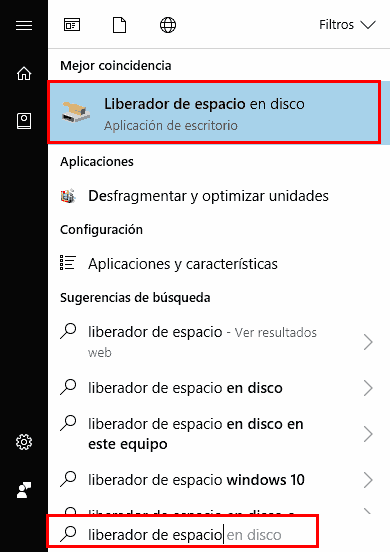
To run Disk Cleanup, we can either search for it in the Start menu by typing the program’s name (just the first few letters is enough),
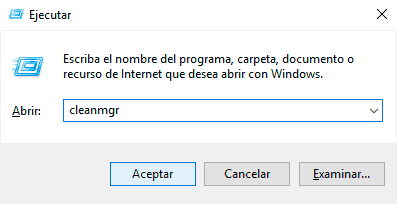
Or use the Run window (Windows + R) and type “cleanmgr”
Disk Cleanup starts by searching for files it can delete and, after a few seconds, the results window appears.
Here we have a list with several categories of files that we can safely delete. But, by default, the Windows update files don’t appear. To make them appear, we click on “Clean up system files”.
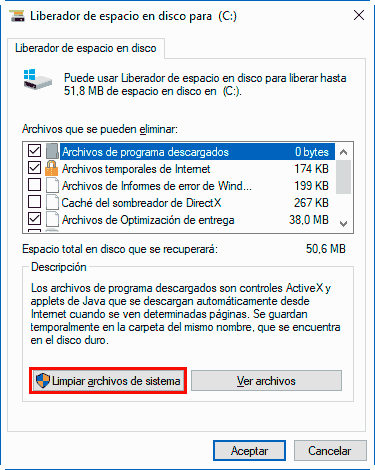
It will search again and open the same results window, but this time we have more options to choose from. To free up the space from previous Windows versions, we select:
- Windows Update log files.
- Previous Windows installations.
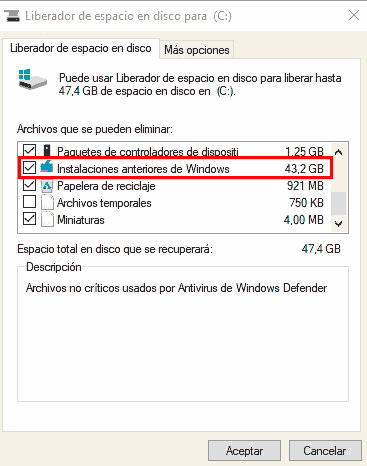
Notice that on the example computer (a real case, specifically mine
Fortunately, we have seen that this useful maintenance task is very easy to perform. It doesn’t work miracles, and it still leaves unnecessary Windows files that are more “dangerous” to delete.
But, in general, it is very useful, safe, and achieves good results. It’s a good idea to get into the habit of running Disk Cleanup on your hard drive from time to time.
