
Today we are going to see how to recover the Windows 10 start menu and taskbar in Windows 11.
Windows 11 came with a lot of improvements in functionality, security, and especially in user interface (UI).
Some of the most controversial changes have been to the start menu and taskbar, which have been completely revamped (let’s say “revamped”).
Personally, I don’t like the UI “improvements” in Win 11, and I imagine if you’ve landed on this post, you don’t either.
Fortunately, it’s very easy to recover the Windows 10 start menu and taskbar thanks to a community-developed tool, ExplorerPatcher.
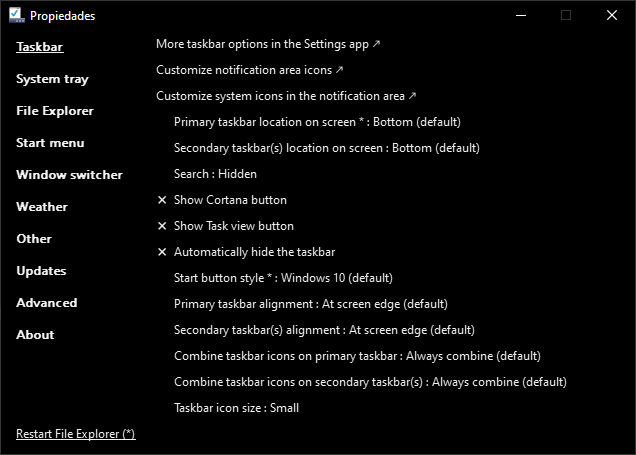
ExplorerPatcher is a tool developed by Valinet, with the goal of improving the working environment in Windows.
This tool is open source and is available on the author’s GitHub: ExplorerPatcher on GitHub
In addition to recovering Windows 10 UI elements, ExplorerPatcher incorporates a large number of improvements and even fixes for some bugs (a slap on the wrist, Microsoft).
Some of its most notable features include:
- Change the taskbar: You can choose between the Windows 11 taskbar or the Windows 10 one, with support for labels, small icons, and a wide range of customization.
- Disable the Windows 11 context menu: If you prefer the Windows 10 context menu, ExplorerPatcher allows you to disable the Windows 11 context menu in File Explorer and other areas.
- Custom Start Menu: Open the Start Menu with all apps by default, choose the number of frequently used apps displayed, and customize their display on the active monitor.
- Alt-Tab Switcher: Switch between the Windows 11 Alt-Tab window switcher, the Windows 10 one, or even the Windows NT one, all with customization options.
How to install ExplorerPatcher
Installing ExplorerPatcher and recovering the Windows 10 Start Menu in Windows 11 is very easy. But let’s review the steps together:
- Visit the ExplorerPatcher repository on GitHub: ExplorerPatcher on GitHub
- Download the latest version of the program.
- Run the program and follow the installation instructions. Your screen might flicker a couple of times, don’t worry.
- Run ExplorerPatcher by searching for it in your start menu with the name “Properties (ExplorerPatcher)”
Note: The use of ExplorerPatcher and other customization tools can affect the stability of your operating system. Make sure to back up your data before making any major changes and be aware that these modifications are made at your own risk.
The program window will appear with all the options you can use—and there are a lot! Take some time to try each one until you get Windows looking the way you like.
Recovering the Windows 10 Start Menu is just one of the many customizations you can perform with ExplorerPatcher. Give it a try and configure the Windows interface you like best.
So now you know, if you are a Windows 11 user who is fed up misses the Windows 10 interface, ExplorerPatcher is the tool you were looking for. Let’s get customizing!
