
In the previous post (available here) we saw examples of the most common threats and malware on Facebook. We also saw the purpose of these applications and how, although they are not especially aggressive viruses, we must remove them from our computer. In this post, we are going to learn how to remove these applications.
Remove Facebook Malware
It is well known that Facebook is not exactly a bastion of computer security. But fortunately, it handles these simple and common threats quite well.
To remove authorized applications from Facebook, we must follow these steps (click on the images to enlarge them):
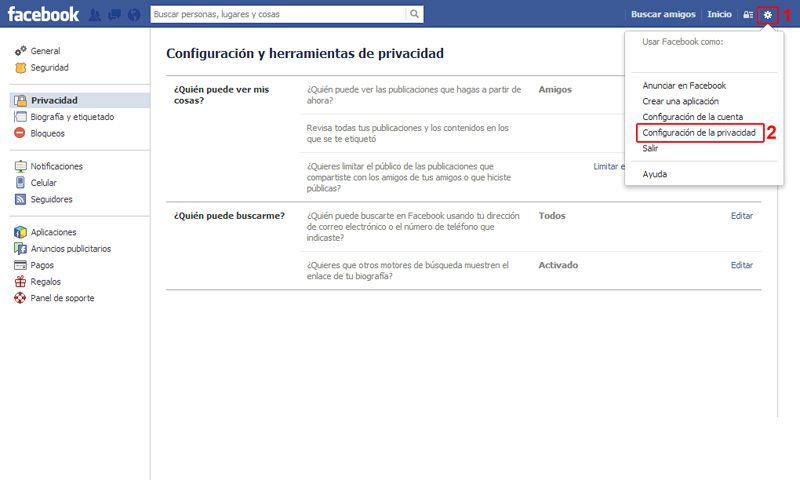
- Click on Settings
- Select “Privacy Settings”
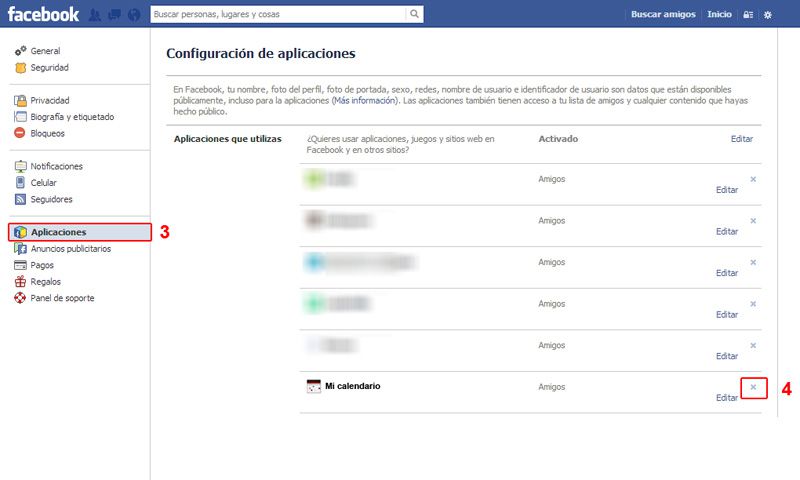 3. Select “Apps”
 - Search through the list of applications and remove the ones we consider suspicious.
In this way, we have removed the application’s rights to use our Facebook account.
With this system, we can remove most Facebook malware. Approximately 80% can be removed this way. However, a small percentage installs differently. For example, some malware that installs when clicking on a video uses a slightly more intrusive technique.
This malware installs itself, in addition to being a Facebook application, as a browser “Extension” (Chrome, Firefox). Even if we remove the Facebook application, it will reinstall automatically. In this case, to remove it, in addition to what was explained before, we must do the following:
- Chrome: Go to: Tools –> Extensions –> Find and remove any new or unknown add-on, and restart the web browser.
- Firefox: Go to: Tools –> Add-ons –> Find and remove any new or unknown add-on, and restart the web browser.
I’m only showing the image of the process in Chrome, because as you can see it’s very similar in Firefox. 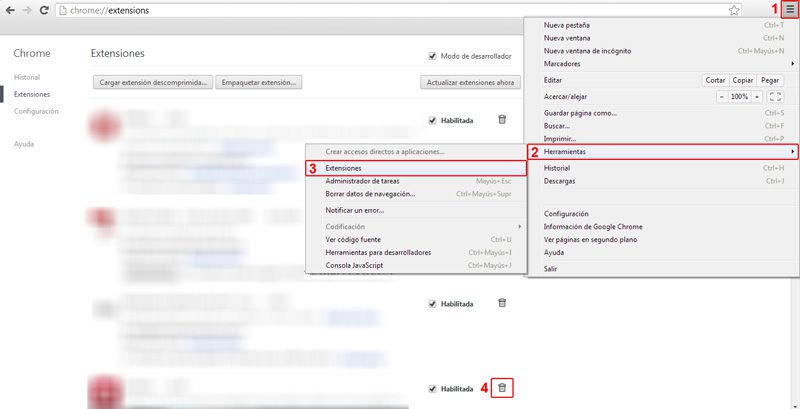
General Best Practices
In addition to what has been said before, there are a series of security best practices we can follow to keep our computer free of viruses or malware.
- Regularly change your social network and email passwords (for example, every 3 months)
- Use long passwords, at least 8 characters. Preferably, they should contain symbols, numbers, uppercase and lowercase letters.
- Have an installed and updated firewall and antivirus on your computer.
- Keep the computer clean using an application like CCleaner.
But above all, as they say, the first antivirus on a computer is the user. Keep in mind that practically all viruses caught on a computer are because the user has “clicked” on something they shouldn’t have. So, when using social networks, keep the following advice in mind:
- Never click on a link sent to you in a private message without being sure of its destination. This is especially true if it comes from someone you don’t know or talk to little, and suddenly they send you a message with just a link. Or if the message is in English (since when does Aunt Paqui speak English? Wow!), etc., etc… If in doubt, ask the person who sent the link before clicking on it.
- Never authorize an application if you are not sure of its function. For example, why do you need an application to see birthdays, if it’s a native Facebook function? Or why does an application need authorization to show you a video news story? If you don’t trust it, search for the video or news yourself on Google.
- Do not click on or propagate any chain messages, whether on Facebook, WhatsApp, email, or any other medium. Of course, do not click on a link that arrives in this way.
- Avoid clicking on links where you don’t know the destination or the address is shortened. Also avoid links to “weird” or unfamiliar addresses.
Never, ever, feed a Gremlin after midnight.- In general, use common sense. Don’t go around the Internet clicking randomly, or you’ll catch all the viruses on the Internet.
With this advice, you will have a clean and secure computer, and you will also contribute to the security of other users.
Did you find the post useful? Do you know other forms of threats you want to share with us? Can’t you remove a particularly annoying program from your computer? In any case, you are invited to leave us a comment.
