With each update, Autodesk seems determined to make AutoCAD slower and heavier, a program that, in principle, should stand out for its drawing speed, without providing users with real improvements or novelties that justify this performance loss.
The AutoCAD 2016 version has not only been no exception to this sad trend, but it has also almost completely eliminated the traditional classic visual style, which more experienced users were accustomed to, and which we refuse to give up due to the slowness caused by the new interface and the Ribbon.
If you are one of those expert AutoCAD users who customize the interface to manage it with keys, who like to squeeze out every bit of speed, and are not resigned to using the new (and terribly slow) visual style of AutoCAD, in this post we will see how to recover the classic style in AutoCAD 2016.
Activate the Classic Style in AutoCAD 2016
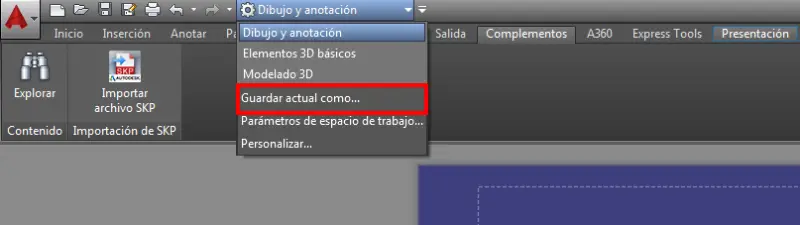
First, we create a new visual style, which we will configure to our liking. To do this, in the workspace bar, select “Save Current As…”.
Give a name to our visual style, for example “Classic”.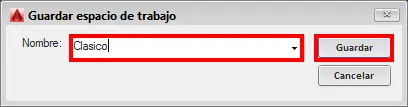
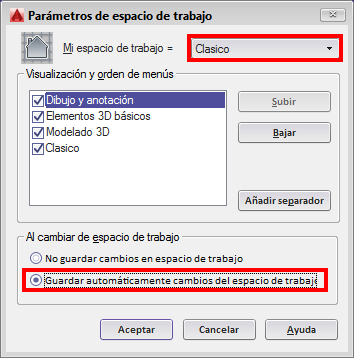
Next, again in the workspace toolbar, click on “Workspace Settings”.
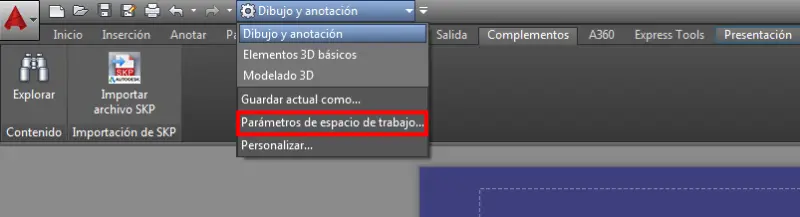
Make sure our “Classic” workspace is active, and activate the option “Automatically save changes to workspace” so that all the customizations we will make next are preserved.
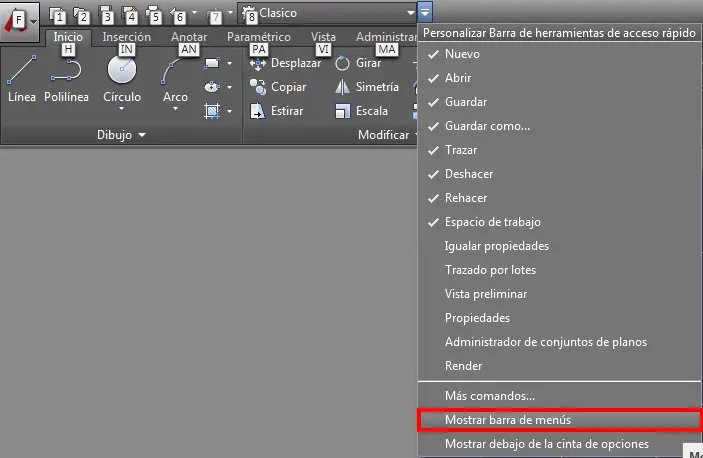
In the command line, type “RIBBONCLOSE” to permanently close the Ribbon.

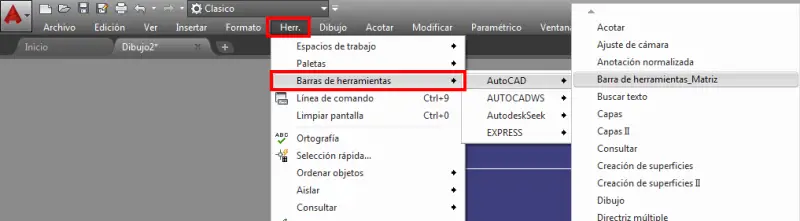
Then, activate the traditional toolbars from the top menu of AutoCAD.
Finally, activate the toolbars you want. In my case, I choose “Standard”, “Styles”, and “Dimensions”, because I have the rest of the commands assigned to keys (you can customize it to your liking).
Additionally, there are other options we can disable to make AutoCAD 2016 more similar to previous versions. Some of you will find them interesting, others annoying. I leave it to your choice to disable them.
One of these new features has been the new smoothed line display. At first, I didn’t particularly like the new fuzzy look of the lines, but on the other hand, the problem of having to regenerate views has been solved, so personally I don’t disable it. Still, if you want to disable it, first turn off high-quality geometry rendering by setting the HQGEOM variable to 0, and then disable line smoothing by setting the LINESMOOTHING variable to 0.
Another novelty has been the highlighting of selected lines with a color halo. I don’t find it particularly annoying; it’s a matter of getting used to it. But if you still want to disable it, set the SELECTIONEFFECT variable to 0.
Done, with that we have restored the classic style in AutoCAD 2016.
Take advantage because, given Autodesk’s track record, in the next versions it will probably become increasingly difficult to activate the classic style, until it becomes impossible and we are forced to use the Ribbon.