
Surely at some point you have taken a picture of a document or a whiteboard with your mobile phone’s camera. The result is not perfect (far from it), but it is very convenient because we always have our phone at hand.
In this post we are going to see how to improve this result by using Microsoft Office Lens, a free application that facilitates capturing documents with the camera of our mobile phone or tablet.
Using Office Lens is very simple, we just open the program and point the camera at the document or whiteboard we want to capture. Office Lens identifies the document and overlays white lines indicating the detection area.
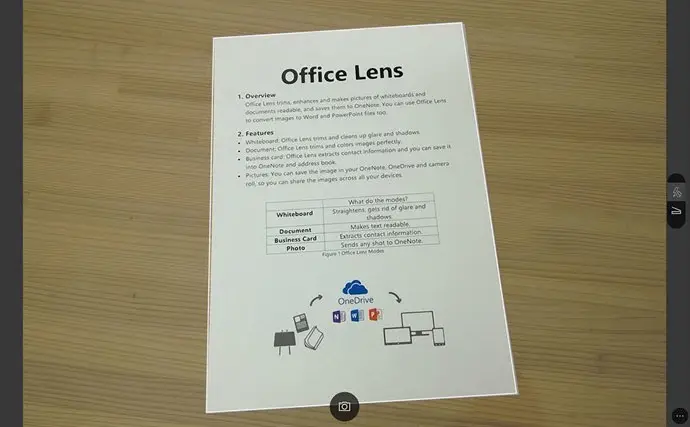 When capturing, Office Lens crops and transforms the image to project it onto a rectangle. The result is not as good as using a scanner but, in general, it is surprisingly good and much better than simply taking a photo.
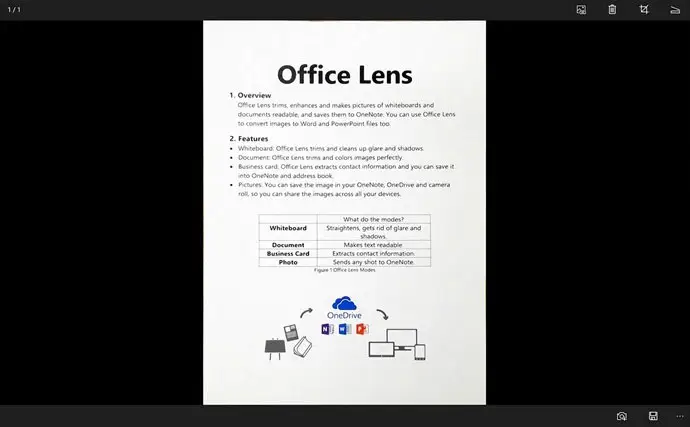
Logically, the result is better the more frontal the capture is, because the distortion to correct is smaller. Other factors also influence the result, such as the camera resolution, lighting, focus, and the condition of the document (if it has wrinkles, folds, etc.).
Office Lens has 4 operating modes: document, whiteboard, business card, or from an image. The difference between the different modes is small, basically it’s the contrast it applies, the aspect ratio, and the treatment of highlights.
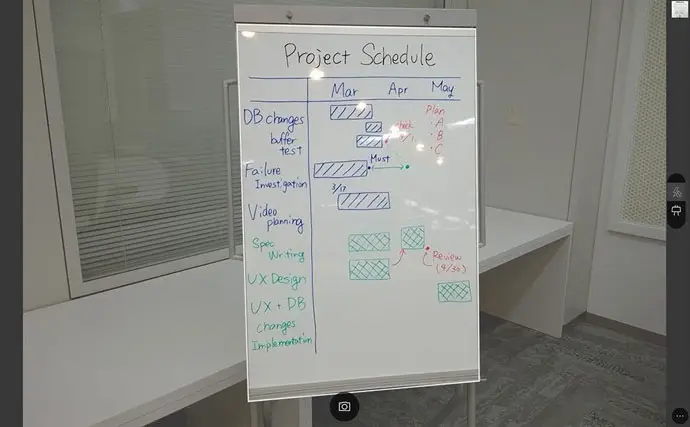
The difference between the different modes is small, basically it’s the contrast it applies, the aspect ratio of the final image, and the treatment of highlights and reflections.

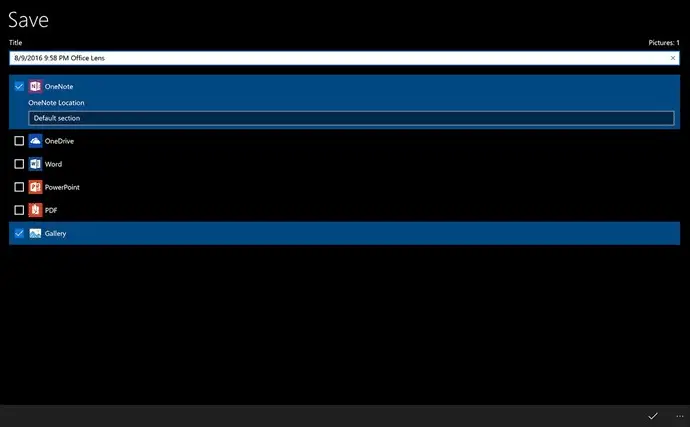
Once the image capture is finished, Office Lens allows you to export the result to OneNote, OneDrive, Word, PowerPoint, PDF, or save it as an image on the device.
Office Lens does not digitize the document, it only applies the image transformation. That is, it does not perform text recognition (OCR) or any other type of vectorization. This is not a problem as it is not its function, and we can later use the images we save in any digitization program we want.
In general, Office Lens is a simple tool that performs its function outstandingly well, and can be very useful in certain situations. There are alternatives that perform the same functions, but its simplicity, good results, and being completely free (without ads in the application) make it a standout option.
Microsoft Office Lens is available for Windows Phone and Windows 10, Android, and iOS, through their respective stores and, as we said, it is completely free, without ads or watermarks.
