
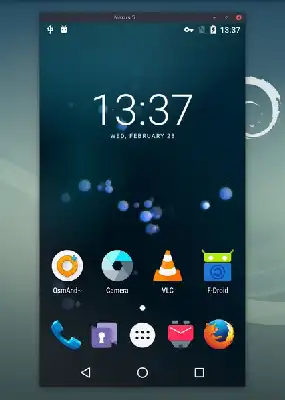
scrcpy (screen copy) is an open-source tool developed by Genymobile that allows us to view and control the screen of an Android device from a desktop computer.
It streams the Android device’s screen to a window on your computer, while allowing us to interact with it using the keyboard and mouse. It is especially useful for developers who want to debug applications, give presentations, or simply manage their Android device from a PC.
Unlike emulation solutions, scrcpy streams the screen and interface of our Android device to a window on your computer, and provides a real-time, high-quality (and surprisingly smooth) experience.
We can use scrcpy via a USB connection or a network connection. Furthermore, no rooting process is required on the device to use scrcpy, making it an accessible and safe option for a wide range of users.
There are various applications that serve the same function. But since scrcpy came out, it has swept away all the others. It works great, it’s Open Source… a real gem 💎.
Key Features:
- Low resource consumption: Uses little CPU and memory.
- High image quality: Supports resolutions up to 1920x1080 at 60 FPS.
- Multiple device support: Can handle several devices simultaneously.
- Full interaction: Allows full control of the device via keyboard and mouse.
- No root access required: Root access is not needed to use it.
- Streaming over USB and network: Compatible with USB and ADB over TCP/IP connections.
How to Install scrcpy
The preferred way is to install it via a package manager like choco.
choco install scrcpy choco install adb # if we don’t already have it installed
Alternatively, we can download the binaries from the file and extract them to a location. We will also need to have adb (Android Debug Bridge) installed on your system.
We can install scrcpy using Homebrew with the following command:
brew install scrcpy
Most modern Linux distributions have scrcpy in their repositories. For example, on Debian and Ubuntu, you can install it with:
sudo apt install scrcpy
How to Use scrcpy
Before starting, make sure to enable USB Debugging on your Android device. This is found in the developer options in your device’s settings.
Once done, connect your Android device to your Windows computer using a USB cable. Finally, we run scrcpy. To do this, run the following command:
scrcpy
A window will open showing your Android device’s screen. We can interact with this window simply by using the keyboard and mouse.
Furthermore, we can drag files from your computer to the scrcpy window to transfer them to your device.
Finally, press Ctrl+S (Windows/Linux) or Command+S (macOS) to capture a screenshot of the device’s screen.
Advanced Configuration
scrcpy offers several configuration options to customize its behavior:
- Resolution: We can adjust the resolution of the streamed screen with the
-moption. For example, to limit the resolution to 1280x720:
scrcpy -m 1280
- Frame Rate: Change the frame rate with the
-fpsoption. To set a rate of 30 FPS:
scrcpy -fps 30
- Network: To use scrcpy over a network connection, first connect the device via USB and enable ADB debugging over TCP/IP:
adb tcpip 5555
adb connect <DEVICE_IP>:5555
Then, run scrcpy without the USB connection:
scrcpy
- Screen Recording: To record the device’s screen to an MP4 file:
scrcpy --record file.mp4
- Connect via network. To connect with scrcpy via network (without USB) we do
execute the command
scrcpy —tcpip=192.168.1.1:5555
Scrcpy is Open Source, and all the code and documentation is available in the project repository on GitHub - Genymobile/scrcpy: Display and control your Android device
