
We all know how useful Resharper is for Visual Studio, with its powerful tools for refactoring and maintaining code. However, it’s also true that sometimes it can be overly heavy, for example, by slowing down Visual Studio or reporting errors that aren’t actually errors.
This is even worse if you develop on other platforms through extensions, such as Arduino, Javascript, Python, or PHP. The incompatibility with these environments means Resharper is more of a hindrance than a help.
Fortunately, we can easily and quickly disable Resharper by creating a keyboard shortcut to the ToggleSuspend command. To do this, in the Visual Studio menu, select Tools, Options. Within this, go to Environment/Keyboard.
Now, assign the ReSharper_ToggleSuspend command to the key combination you want.
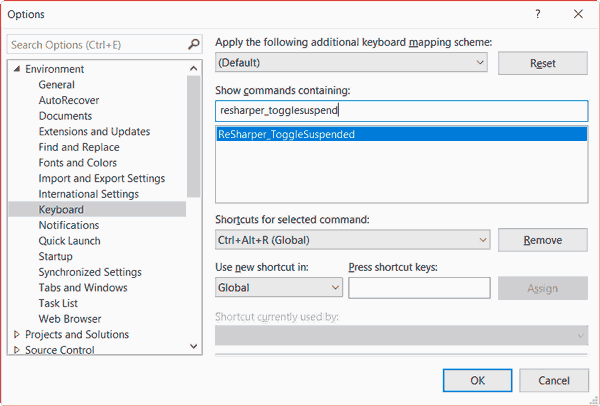
It’s that easy. Now we can turn Resharper off or on comfortably by pressing a key combination. Just keep in mind that while deactivation is instant, reactivating it takes a few seconds, and during that time Visual Studio will not respond or will respond very slowly.