

In this post, we are going to explain how to type on your Android device from a computer, over the Wifi network. It’s easy and doesn’t require installing complicated programs, emulators, or virtual desktops.
For example, imagine you are in front of a computer and you receive a WhatsApp message. It would be great to be able to use the comfort of the keyboard to reply to the WhatsApp, write an SMS, or make a long note on a phone or tablet. And, while we’re at it, it would also be useful to be able to copy/paste text from the computer to our phone.
Well, all of this is possible and easy to do with WiFi Keyboard, a free application for Android. WiFi Keyboard appears as just another keyboard among the several we have installed on the phone. This makes it quick to activate and deactivate, and very simple to use in daily life.
After installing WiFi Keyboard, the steps to use it are as follows:
- Connect your phone to the Wifi network (if it isn’t already).
- On your phone, tap and hold on the field where you want to type. A box appears that allows you to choose which keyboard you want to use. Select ‘Wifi Keyboard’.
- In the phone’s notification area, the phone’s IP address appears (e.g.,
http://192.168.1.25:1111/). - On the computer, open your Internet browser (Chrome or Firefox) and enter the previous IP in the address bar. The computer connects to the phone, and the following window appears (click to enlarge).
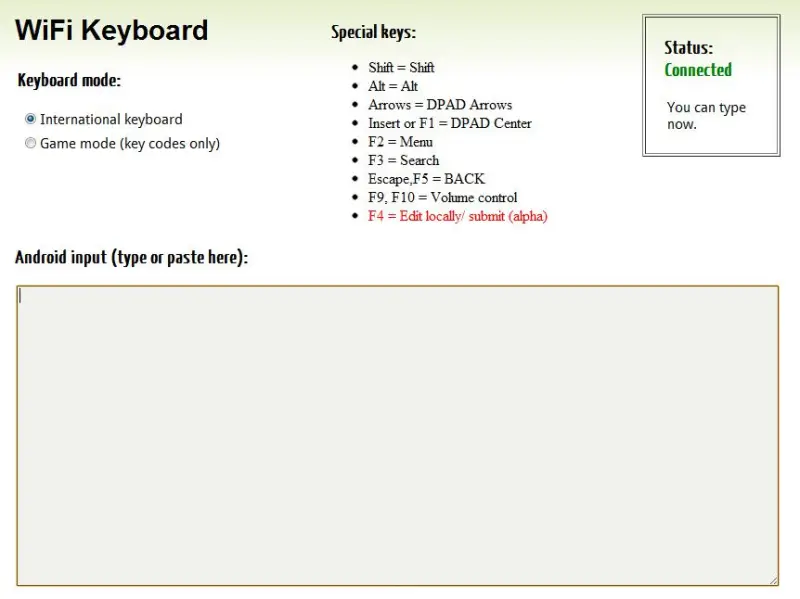
- Type in the main area. The entered text appears on your device.
- When you are finished, close the browser on the computer and select your usual keyboard on the device.
The application can be downloaded for free from the Google Market/Play.
