
Environment variables are a very useful tool provided by Windows. However, in general, they are neither known nor utilized by most users. So, let’s dedicate a little post to them!
Environment variables are simply a piece of text we access by a name. They exist globally on a machine or in a session and are one of the ways to store configurations.
Among the values available by default, we have some useful information such as, for example, the user login, the computer name, or the installation path. Although we will see that it is also possible to create our own.
Environment variables are not an exclusive feature of Windows. They also exist, for example, in Linux. However, they are usually more unknown and overlooked in Windows.
And what are they for? For many things… keep reading 👇 and we’ll see.
What Environment Variables Are For
The information contained in environment variables is very useful for maintenance tasks, script creation, or task automation. We can access them from almost anywhere. For example, if we run this in a Windows terminal, we’ll see it shows your computer’s name (as expected).
echo %computername%
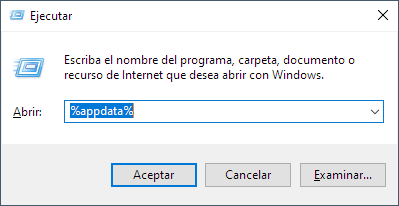
But we can access them from many more places, not just the terminal. For example, in the “Run” menu.
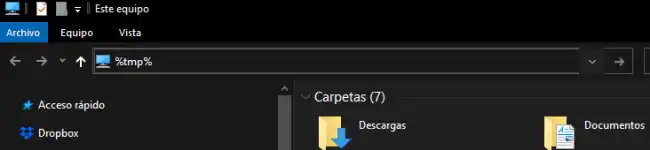
For instance, it’s possible to use them in the Windows File Explorer address bar.
You could even do it in the middle of a “save document” dialog box. Which is very useful, as we’ll see later when learning how to create your own variables.
Practical example. I connect to a remote computer and want to go to its user folder.
Default Environment Variables
By default, Windows provides many pre-defined environment variables that we can use at any time. Here are some of them.
Session Information
- %USERNAME%: returns the name of the user currently logged into the system.
- %USERDOMAIN%: returns the name of the domain to which the currently logged-in user belongs.
- %COMPUTERNAME%: returns the computer name.
- %OS%: returns the name of the operating system you are working on.
- %LOGONSERVER%: returns the name of the logon server that authenticated the current user session.
User Directories
- %HOMEDRIVE%: the disk drive where the current user’s profile folder is located.
- %HOMEPATH%: the current user’s profile folder.
- %USERPROFILE%: the current user’s profile folder.
- %ALLUSERSPROFILE%: leads to the system’s public profile.
- %APPDATA%: the application data folder for the current user.
- %LOCALAPPDATA%: the local application data folder for the current user.
System Directories
- %WINDIR% or %SYSTEMROOT%: Windows installation directory (usually “C:\Windows”).
- %PROGRAMFILES%: directory where programs are installed for all system users.
- %PROGRAMFILES(X86)%: directory where 32-bit programs are installed on 64-bit operating systems.
- %PUBLIC%: system public folder.
- %TEMP% or %TMP%: temporary folder for the current user.
More Variables
- %PATH%: displays a semicolon-separated list of paths where executable files are searched when you run a command in the command line or in a script.
- %PATHEXT%: displays a semicolon-separated list of file extensions that are considered executable files when running commands in the command line or in a script.
- %TIME%: this variable
Personal Environment Variables
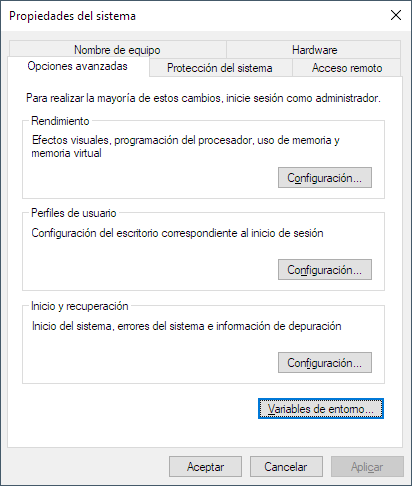
We can also create our own environment variables. The easiest way is to search for “Environment Variables” in the start menu, and this will appear.
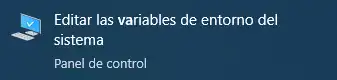
There, click the “Variables” button.
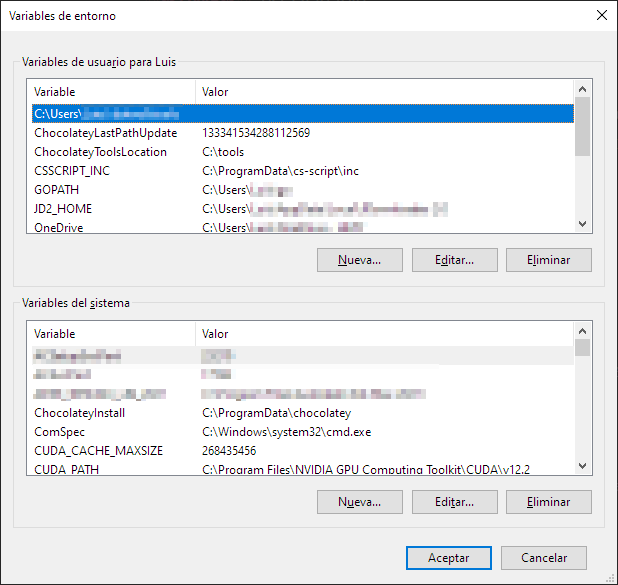
And a list will appear with your variables, both at the user level and at the machine level.
Alternatively, we can also set a variable with the setx command using the following syntax, but I don’t recommend it unless you have to do it in a script.
setx [variable_name] "[variable_value]"
setx is limited to a length of 1024 characters. If you use it for longer text, it will truncate it. In particular, NEVER use it with the PATH variable.
This is where things get more interesting. Imagine the number of places you can use them. For example:
- In system administration, setting an environment variable for computers or sessions
- Creating shortcuts for paths or URLs you frequently access
- Creating aliases for commands you frequently run
- Storing parameters for who knows what
Don’t go overboard and start creating an environment variable for everything. But 2 or 3 well-created ones can save you a lot of time and simplify your life. Until next time!
