
One of the functions I use most frequently, both personally and professionally, is taking screenshots. As the saying goes, a picture is worth a thousand words, and in many cases, a screenshot with added notes is much more useful than a long explanation and saves time for both the person creating it and the person reading it.
If you also need to take screenshots, you’ll find that Windows’ native options are quite limited. Although the situation improved slightly with Windows 7 with the inclusion of the “Snipping Tool,” it still fell far short of the options available in other systems and the potential utility of this function.
Greenshot is an Open Source application that greatly improves the process of capturing screens on Windows. It is a lightweight, fast application that consumes few resources and is minimally intrusive for the user. In short, an application that does exactly what it’s supposed to do and does it well.
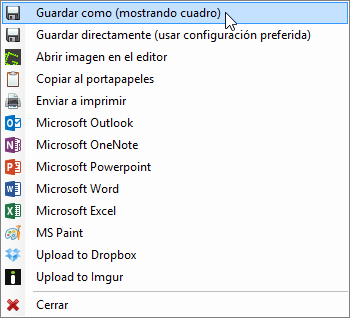
Greenshot replaces the normal behavior when pressing the print screen key. Instead, when taking a screenshot, it shows a context menu with possible actions, including, among others, copying to the clipboard, saving to disk, editing, or sending by email or to an Office document.
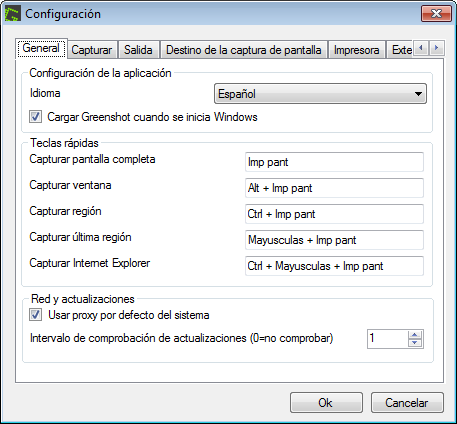
Greenshot also allows you to configure new keyboard shortcuts for actions such as capturing a region, capturing the screen, capturing a window, and capturing the last captured region, which of course we can customize to our liking.
We can also configure one or more actions as defaults from the options menu, and these will be executed automatically without needing to specify them. Similarly, we can set up automatic saving of images to a folder, and they will be saved with convenient renaming.
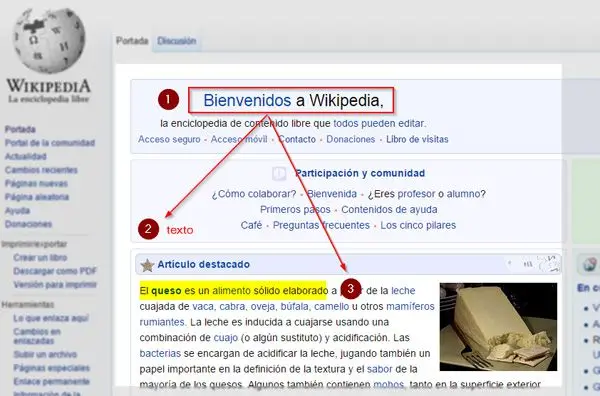
Furthermore, Greenshot includes a simple but useful image editor that allows us, for example, to add rectangles, circles, text, counters, highlight areas or text, or pixelate text. We can move or edit these elements at any time, and finally save or send the edited image.
Greenshot is one of those tools that should not be missing from your utility library. If you haven’t tried it yet, you should give it a chance. As we said, Greenshot is Open Source and is available at the following address: http://getgreenshot.org/
