

Today we are going to see how to install the Windows Terminal, Microsoft’s new command console that provides significant functional and aesthetic improvements.
Since its inception, Windows has had Command Prompt (CMD) as its command console. However, for one reason or another, the use of the command console has never been as frequent in Windows as in other systems like Linux.
In an attempt to improve its terminal, Microsoft launched PowerShell (PS) in 2006. It incorporated numerous improvements, being a more modern and powerful CLI, with a scripting language with significant automation capabilities. However, PS did not replace CMD as the default terminal in Windows 7 and 10.
Later, Microsoft incorporated Windows Subsystem for Linux (WSL) technology, which allows us to run Linux distributions natively on Windows. This way, we can have a Bash terminal running natively on Windows.
At this point, with so many different terminals that could run on Windows, it was becoming clear that Microsoft needed a better solution to integrate its command-line applications.
Thus, in 2019 Microsoft began working on the new ‘Windows Terminal’, a new and renewed command interpreter for Windows, which aims to improve the experience and adoption of command consoles on Windows. 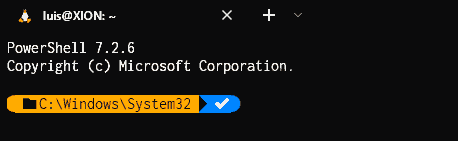 One of the strong points of Windows Terminal is that we can run different command interpreters within the same program. It is compatible with Command Prompt, Powershell 5/7, WSL (Ubuntu or Debian), Azure Cloud Shell, among others.
With Windows Terminal, we can open different sessions, either from the same interpreter or from different ones. Each session is displayed in a new tab in the top bar. It is also possible to split the screen into panes, so they coexist on a single screen.
It is also possible to create a remote connection session via SSH. With this, we can have all our remote accesses in the same program, without needing other software.
We will see how to configure an SSH session in Windows Terminal in a future post.
Other interesting features are the command palette (accessible by pressing Control + Shift + P), keyboard shortcut configuration, and the new search tools and the ability to export session content to a text file. 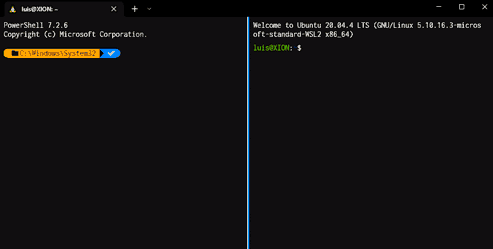 In addition to these functional improvements, the new Windows Terminal adds significant aesthetic improvements. For example, it is possible to modify color schemes, or apply transparency or an image to the terminal background.
On the other hand, it is compatible with special fonts for development and ligatures. By default, it is configured with the new Cascadia Code font, specially designed for working with code snippets. But we can easily change it to our favorite typography.
Finally, Windows Terminal is extensible with modules and plugins to further extend its capabilities and customization. We will see how to use this to customize the console in a future post.
The new Windows Terminal is the default command console in Windows 11, replacing Command Prompt. In the case of Windows 10, it is available in the Microsoft Store for free.
Finally, note that Windows Terminal is an Open Source project, and all the code is available at https://github.com/microsoft/terminal. You can check it out if you want to take a look or contribute to the project’s development.
